

Inviting Users to Files
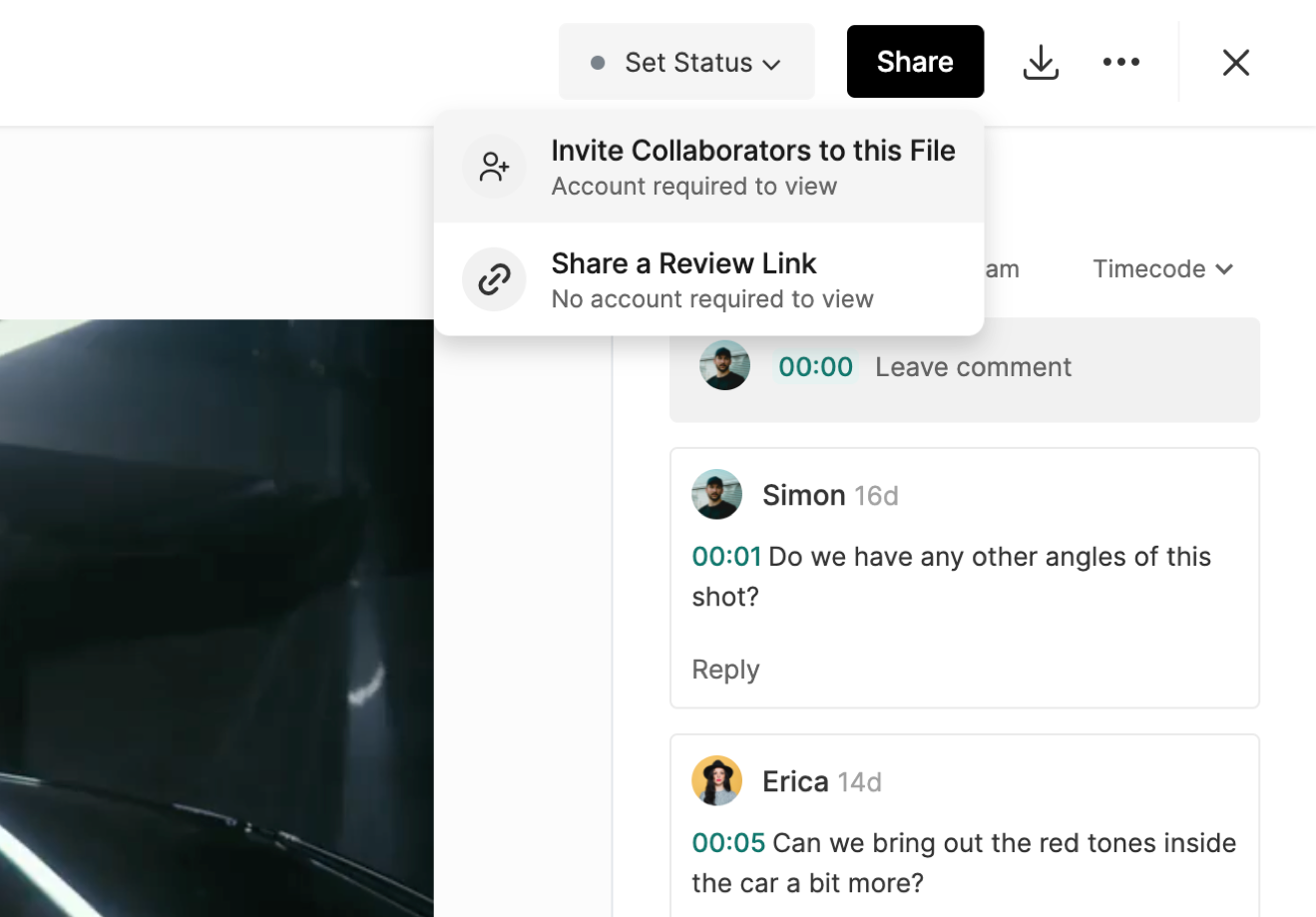
To control which team members can access a file, click the Share button in the upper right-hand corner of the asset's page and select Invite Collaborators from the drop down menu.
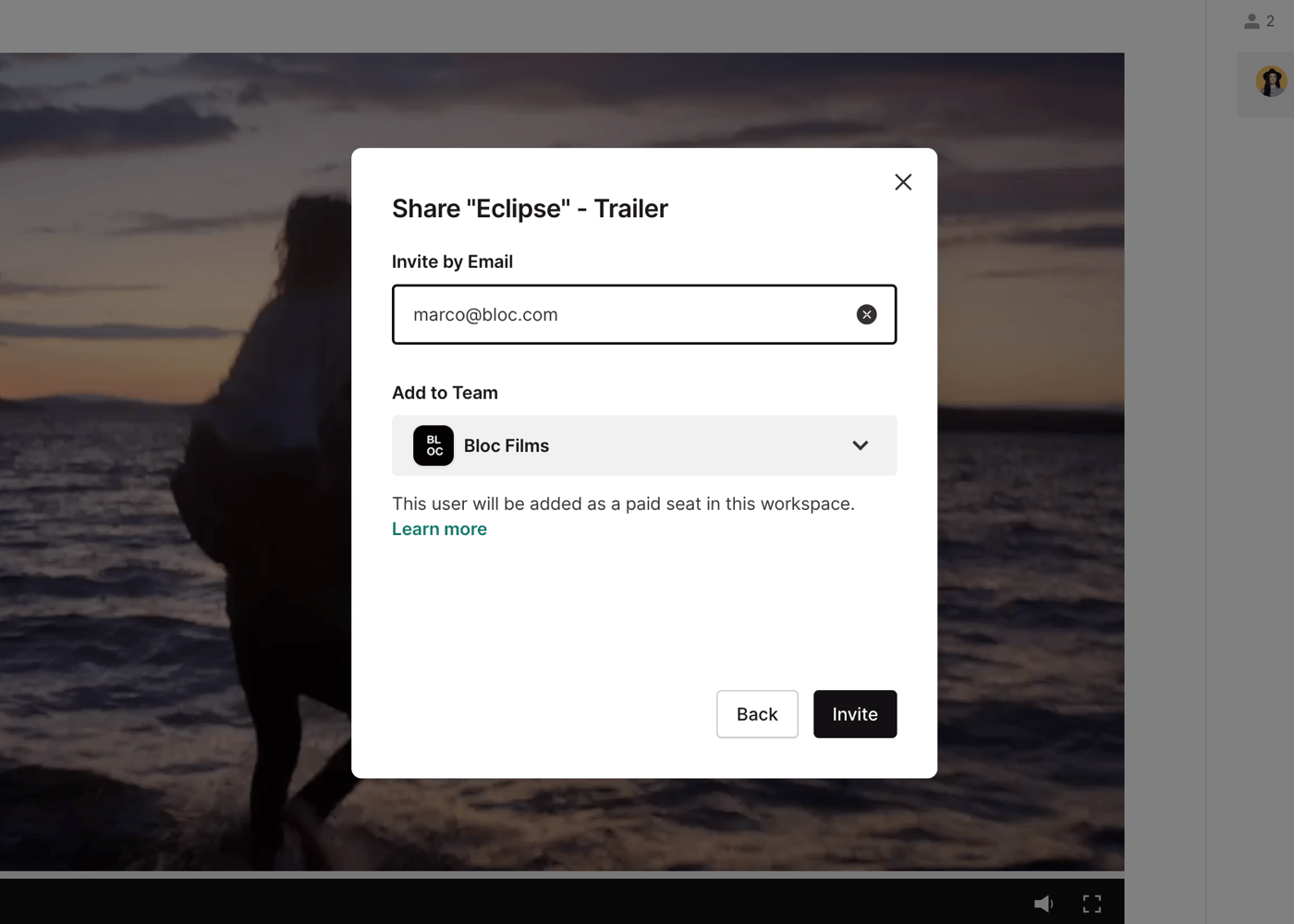
To invite a new user to the project, enter an email to bring up the Add to Team options.
Choose which team you would like to invite them to by clicking the Add to Team drop down. Beneath the team names, each team will be identified as a Workspace Team or Guest Team.
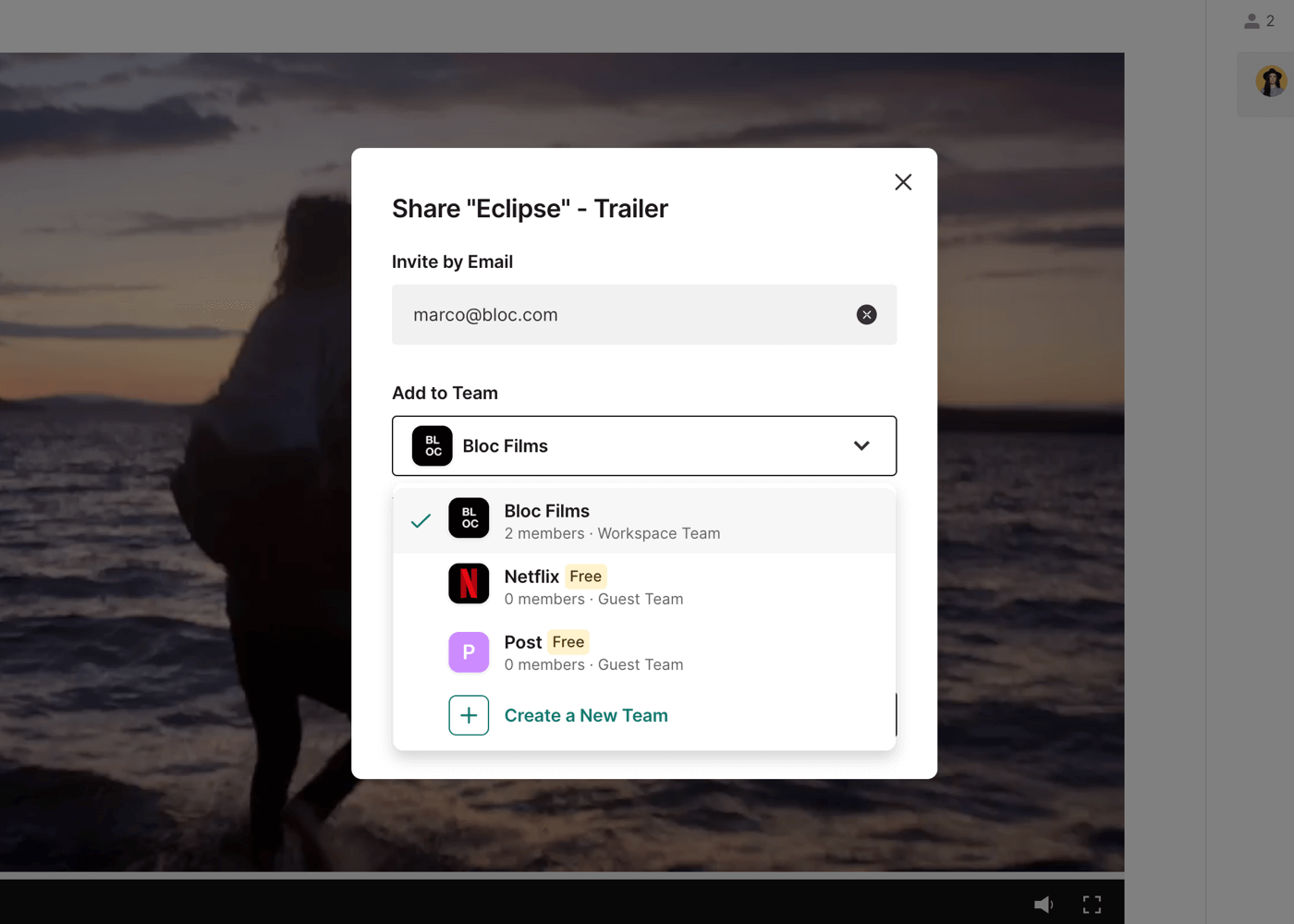
Users invited to the Workspace Team will be added as paid users on your workspace. Users invited to a Guest Team will be added to the project as a free user. Click Invite to send the invite.
To learn more about sharing review links with users without an account, click here.
Sharing Files with Existing Teams
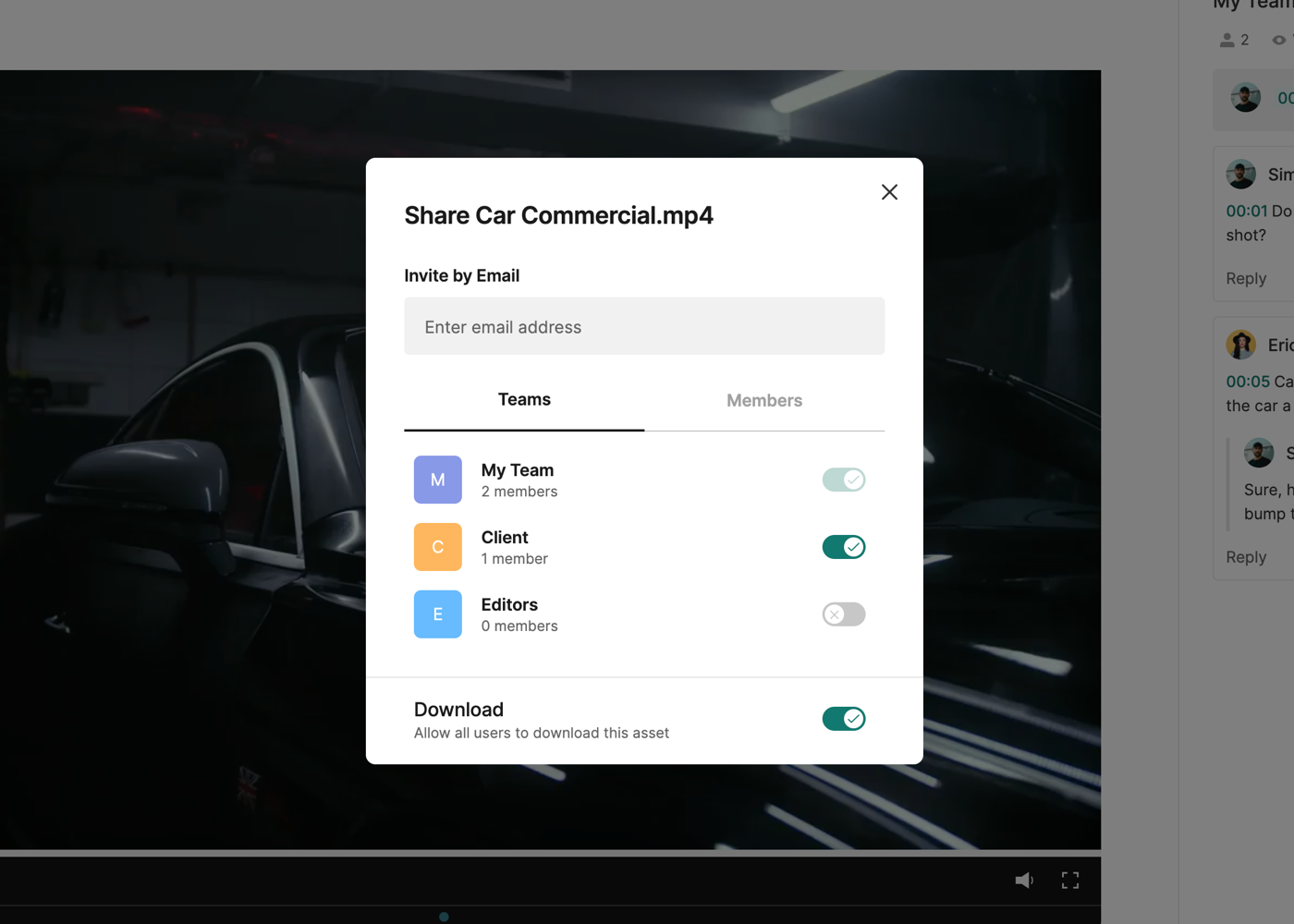
The Invite screen will also allow you to share access to the file with existing Teams or individual Members.
To share access with an entire team, click the switch for that team under the Teams tab, or to share access with an individual user, click the Members tab and click the switch beside the user's name. You can also switch an entire Team on, but then individually control which Members within that Team have access.
To learn more about teams, click here.
Setting Download Permissions for Files
At the bottom of the Share settings, you will see the option to enable or disable Downloads. By default, every file you upload will automatically have downloads enabled. If you turn this option off, collaborators will no longer be able to download the file.
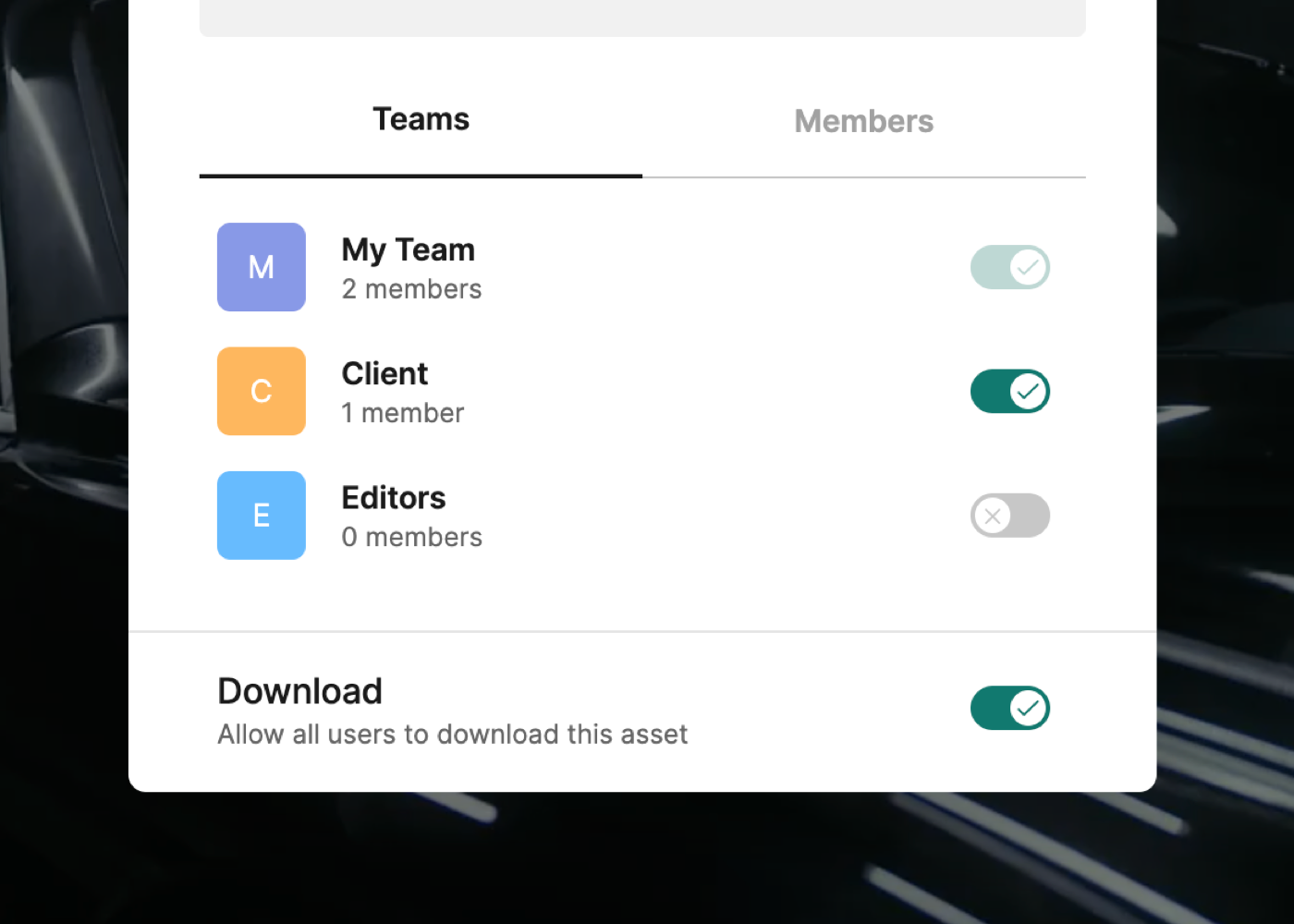
To learn more about downloads, click here.
Teams and Private Feedback Threads
Whenever a Team is given access to a file or document, a new Private Feedback Thread will be created for that Team, enabling you to control who can see the feedback from each Team.
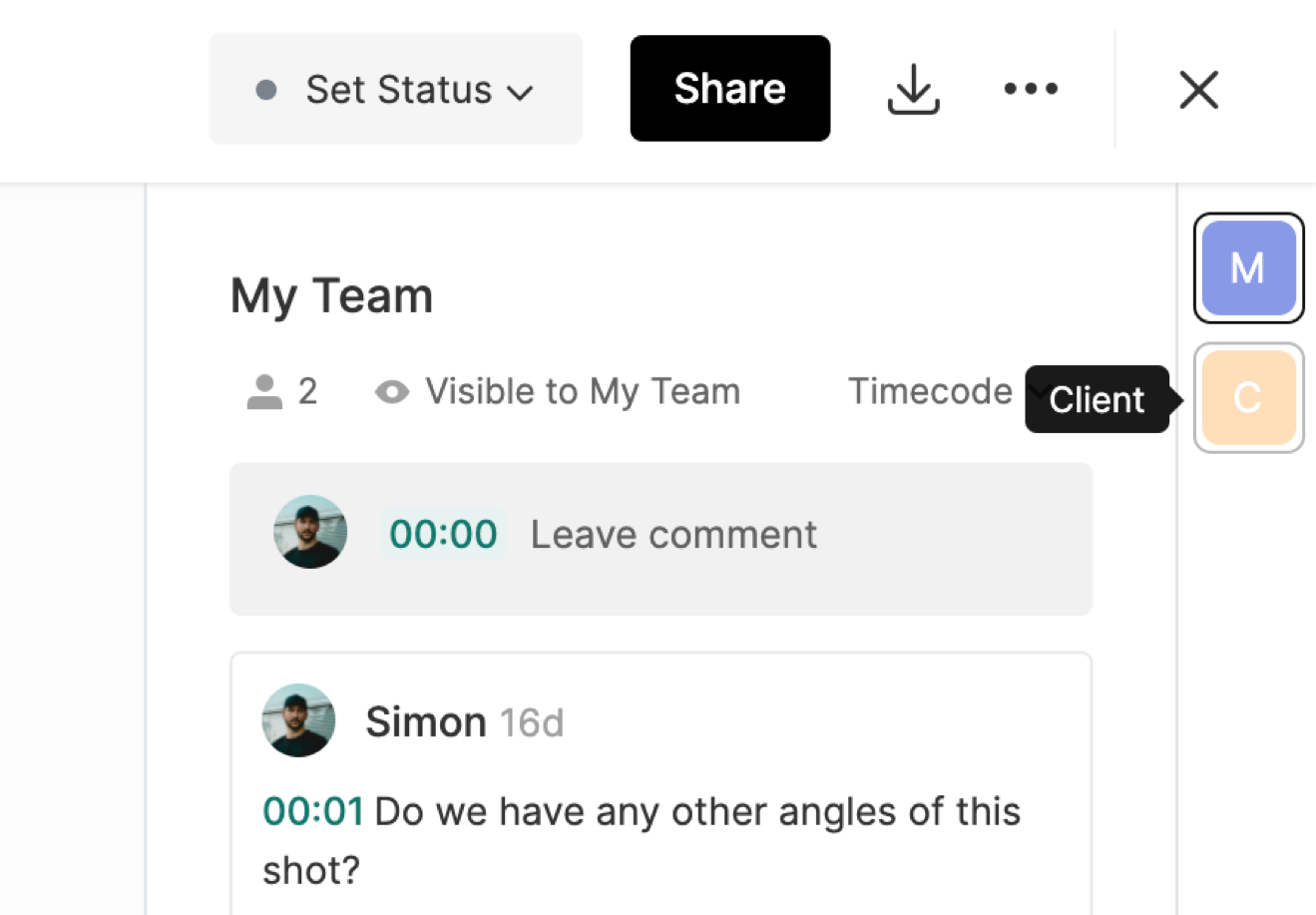
To learn more about private feedback threads, click here.