

Adding Folders
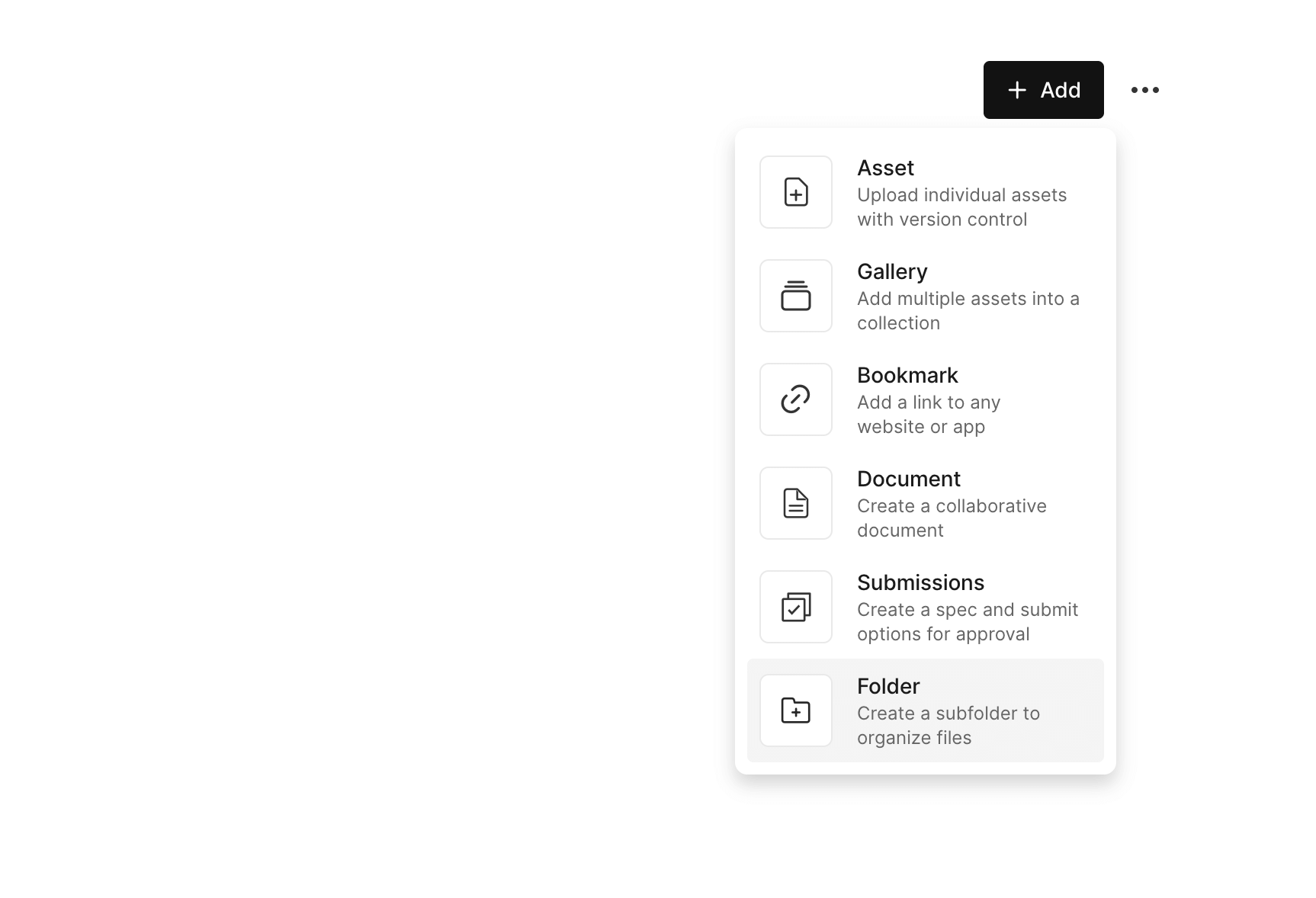
To add a folder to your project, just open any Phase, click the Add button in the top-right corner, and select Folder.
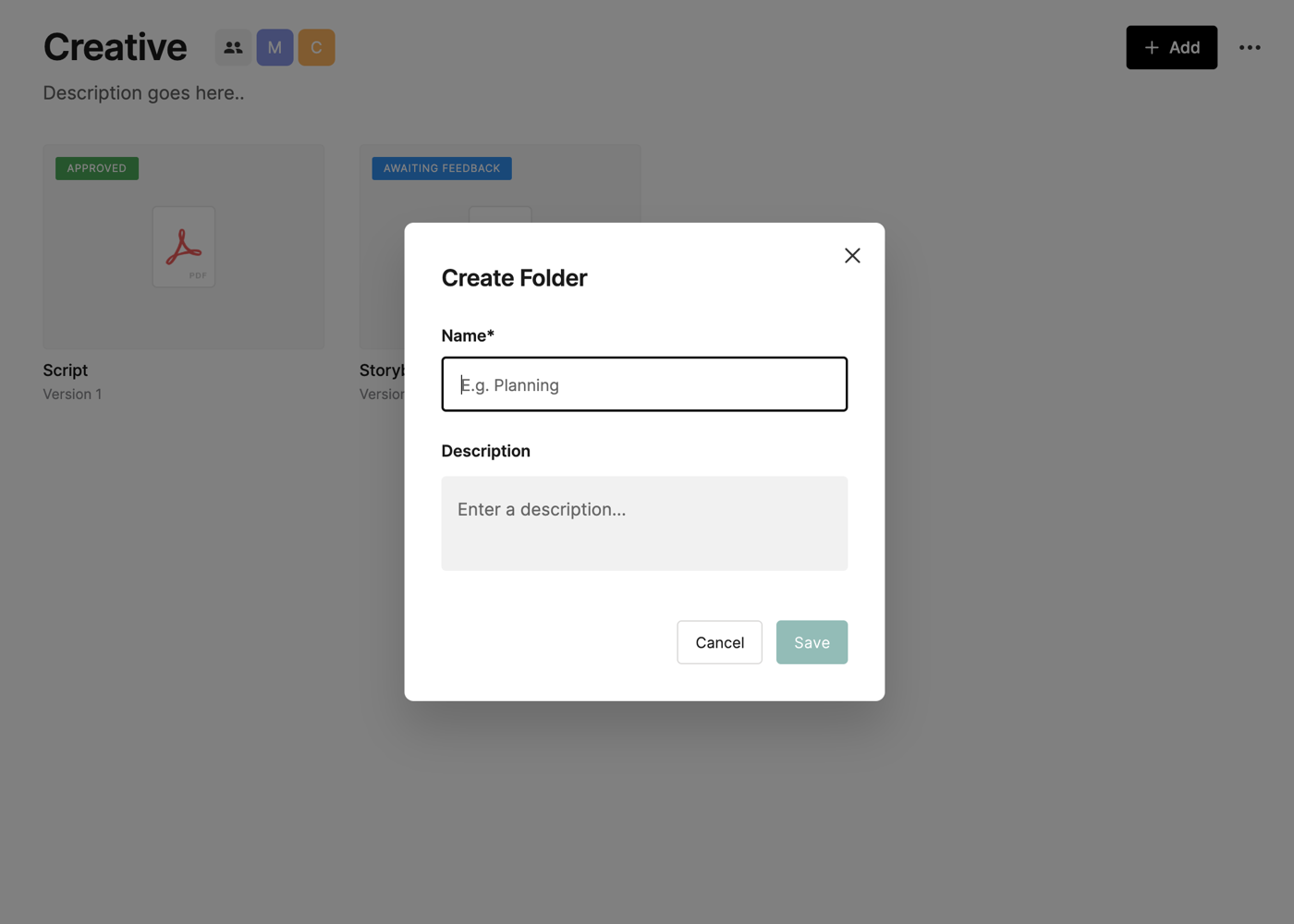
You will then be prompted to add a Name and a Description (optional) for the folder.
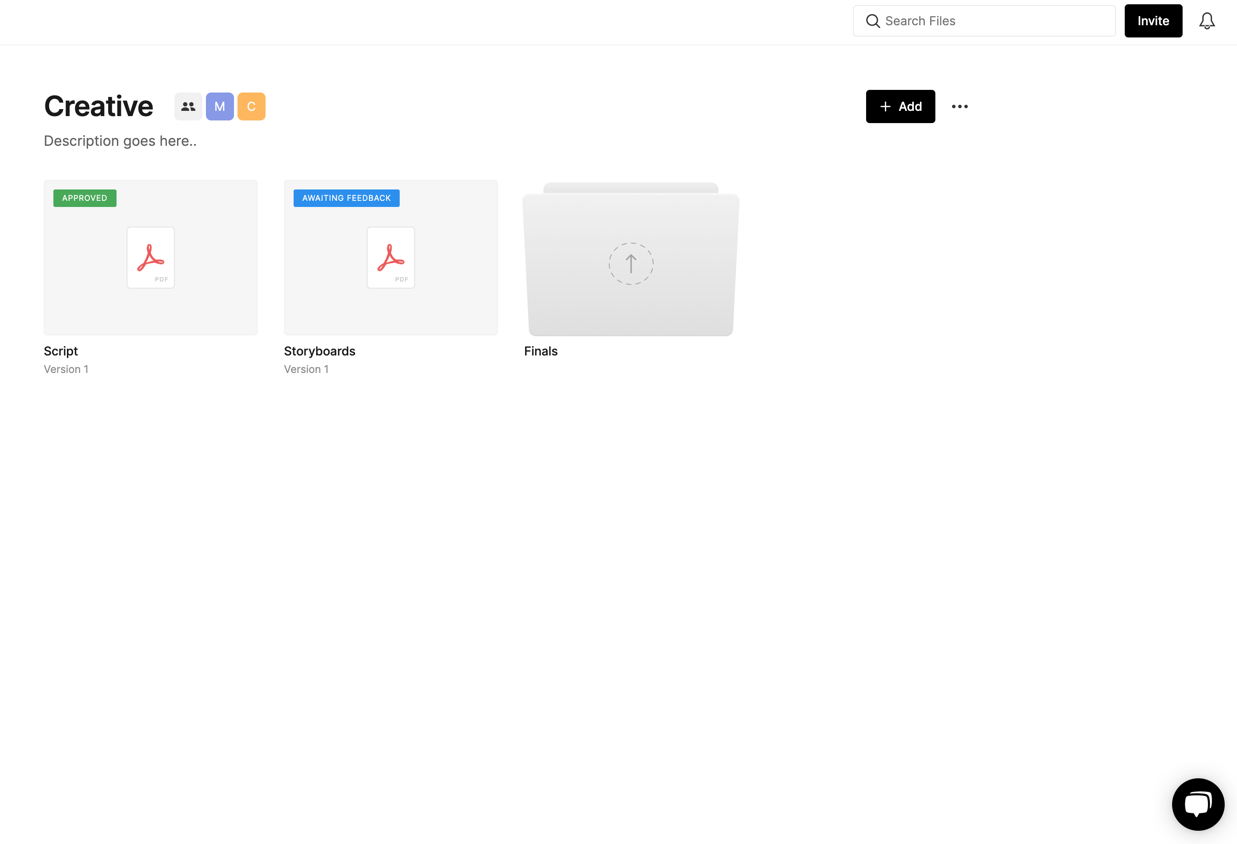
This will create a folder within the specific Phase. You can add as many subfolders as you like within Phases, or within other subfolders.
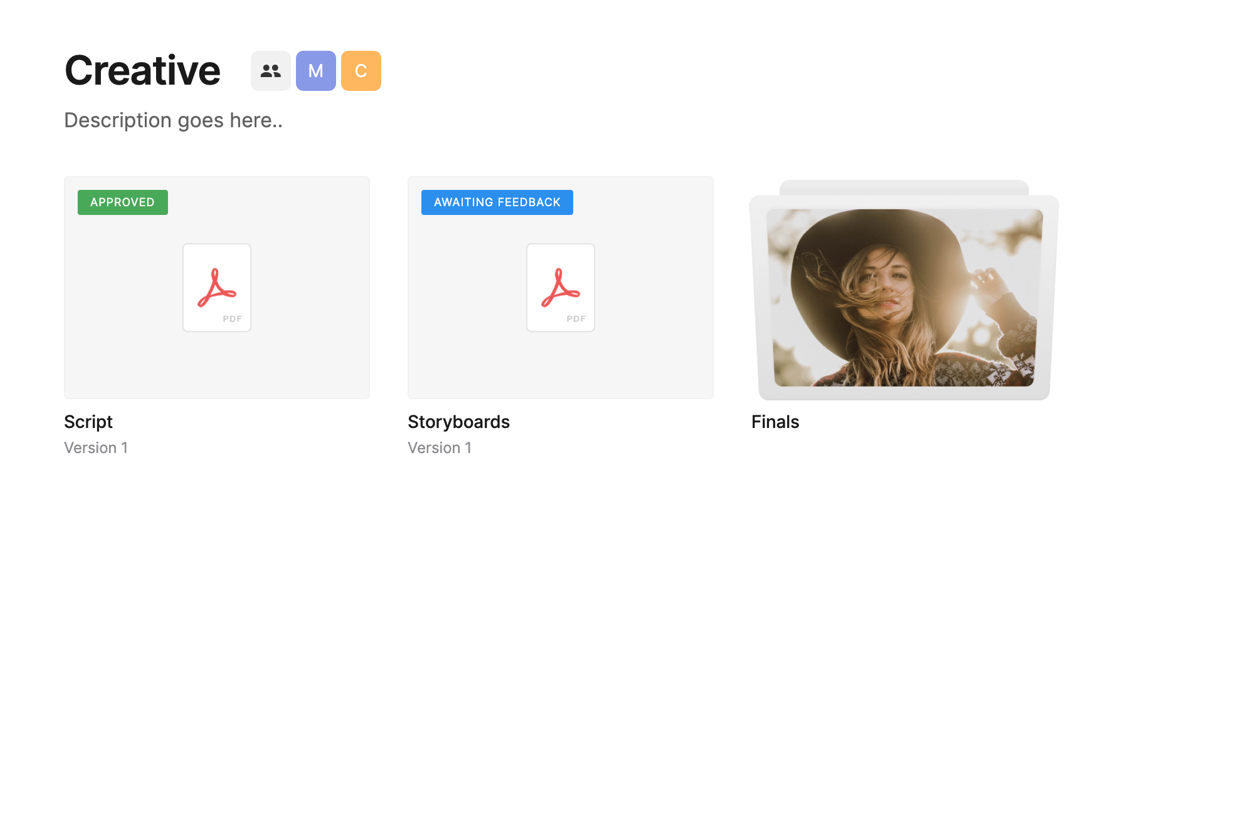
Once you've added assets into a folder, it will display the first asset as a preview of what's inside.
Navigating Folders
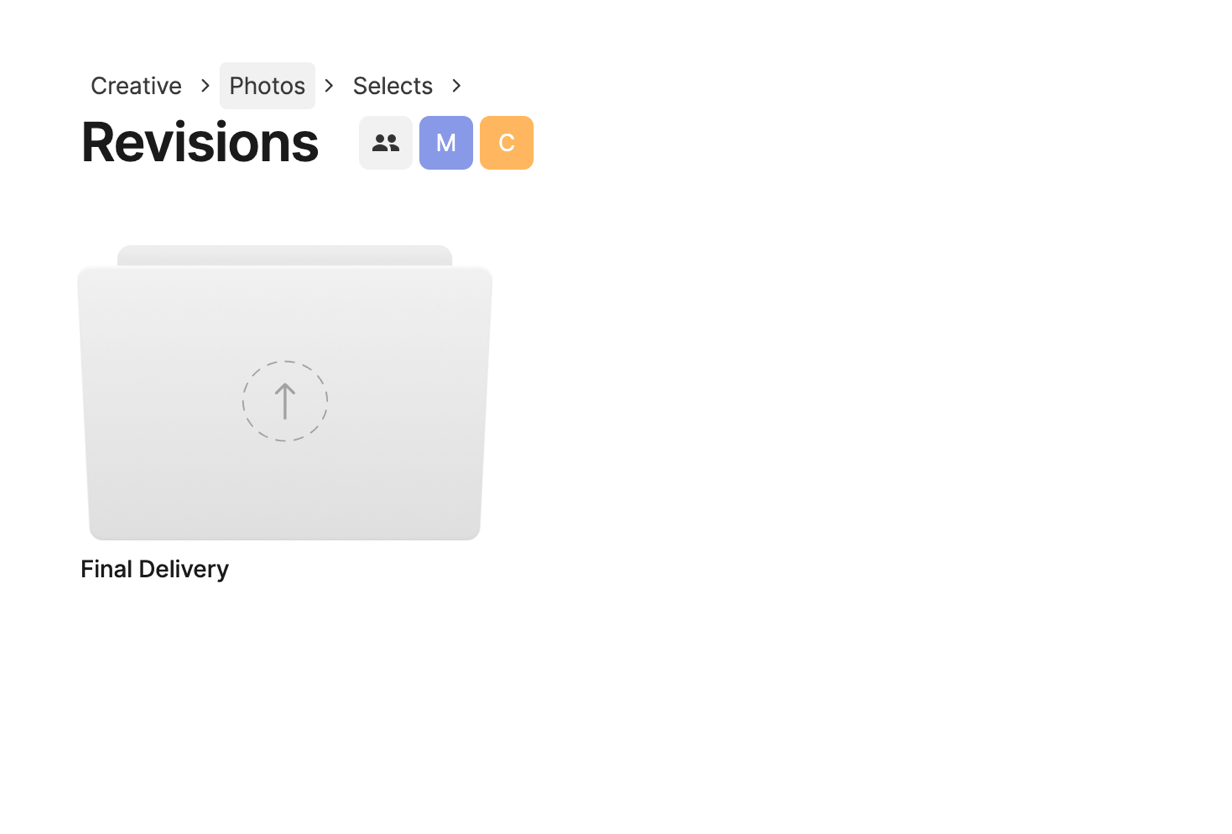
If you have multiple layers of subfolders, you can easily navigate them by using the Breadcrumbs above the folder name. Just hover and click the name of any Folder to quickly jump to that folder.
Setting Viewing Permissions for Folders
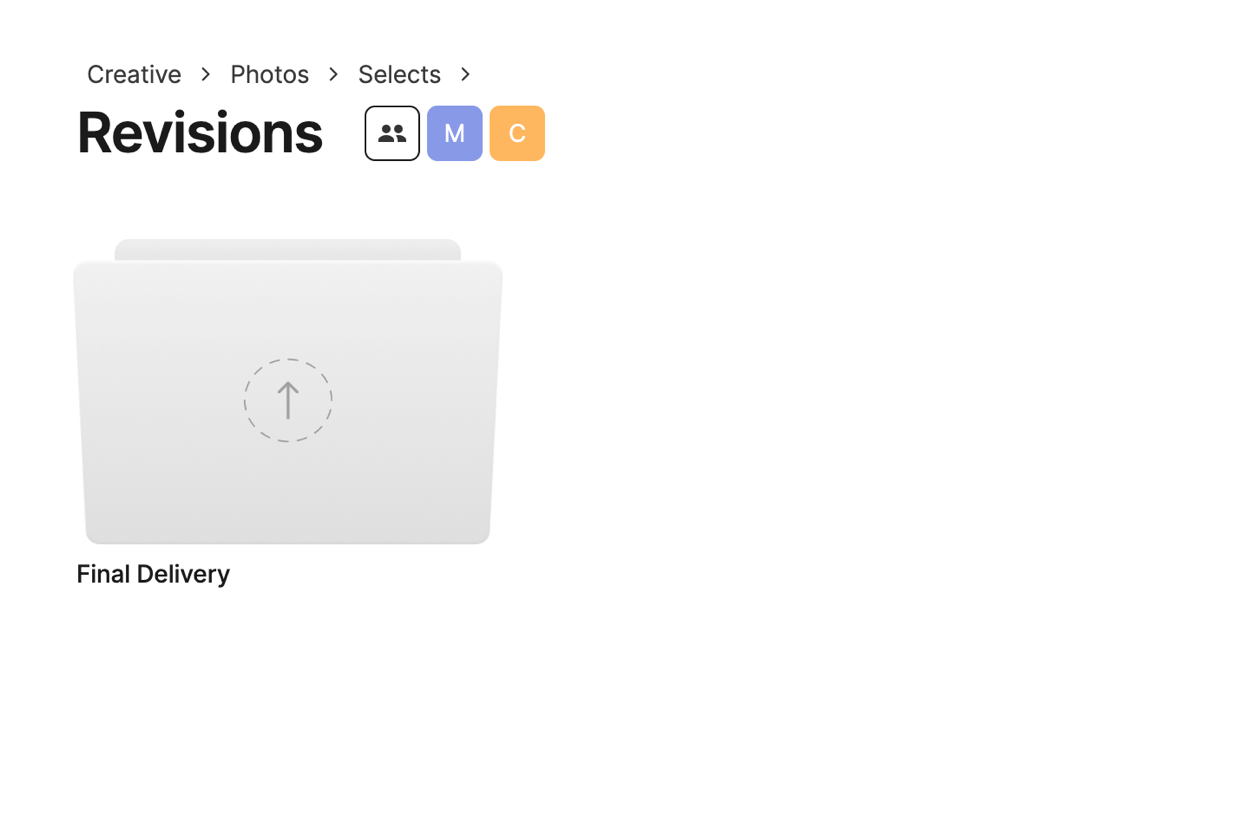
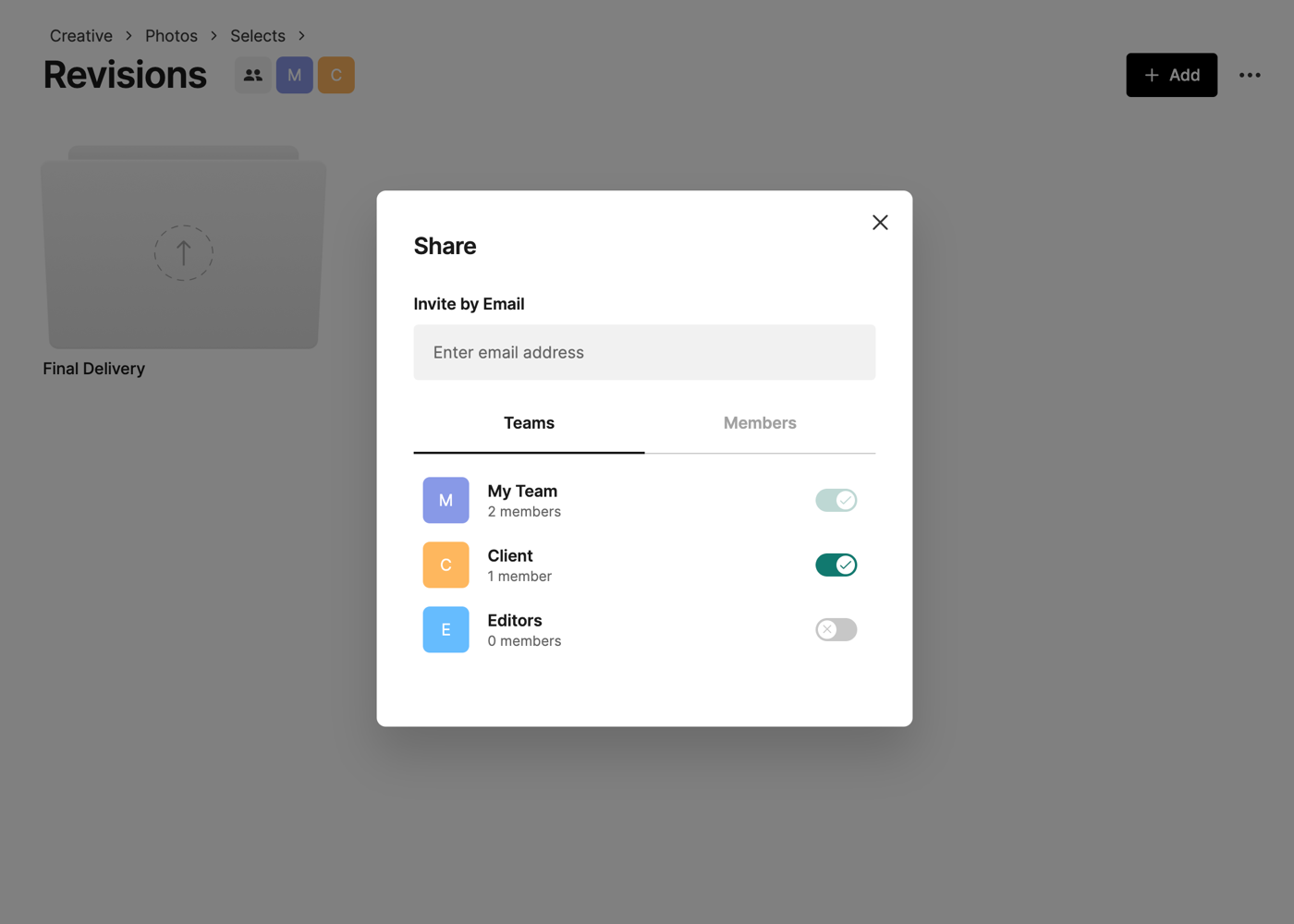
You can control who has access to your folders by clicking the People icon next to the folder name.
From this screen, you can grant access to Teams or individual Members on the project. You can also Invite users to join the folder via email.
To learn more about teams and user permissions, click here.
Managing Folders
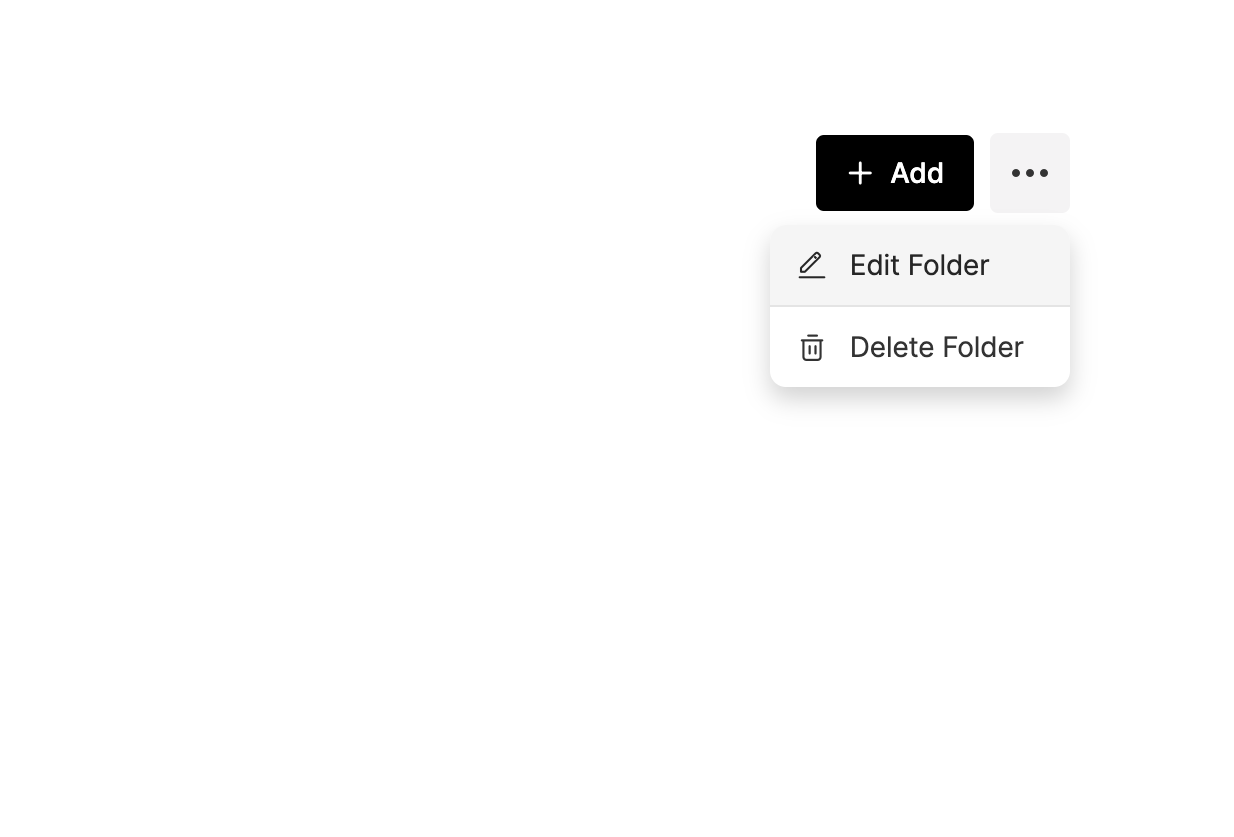
To edit the Name, Description, or to Delete a folder, just click the three dot menu at the top right of the folder and select Edit Folder or Delete Folder.
IMPORTANT: Deleting a folder will permanently remove all of the assets and subfolders within that folder. There is no way to recover these assets.