
Assemble
Assemble
Docs
  • Docs
  • Changelog
  • Feature requests
    • How to Build a Calendar
    • How to Add Tasks to Your Project
    • Attaching Files to Tasks
    • Bulk Drag & Drop to Shift your Calendar
    • Switching Between Month View & Timeline View
    • Sharing Review Links
    • Filtering Global Calendar and Tasks
    • How to Add Emoji Milestones
    • Locking the Calendar
    • Tracking Changes to the Calendar
    • Sync Google, Apple or Outlook
    • Using the Global Calendar
    • Using the Global Task List

Sync Google, Apple or Outlook

How to access calendar syncing options for Google, Apple, and Outlook calendars.

How to Access Syncing Options

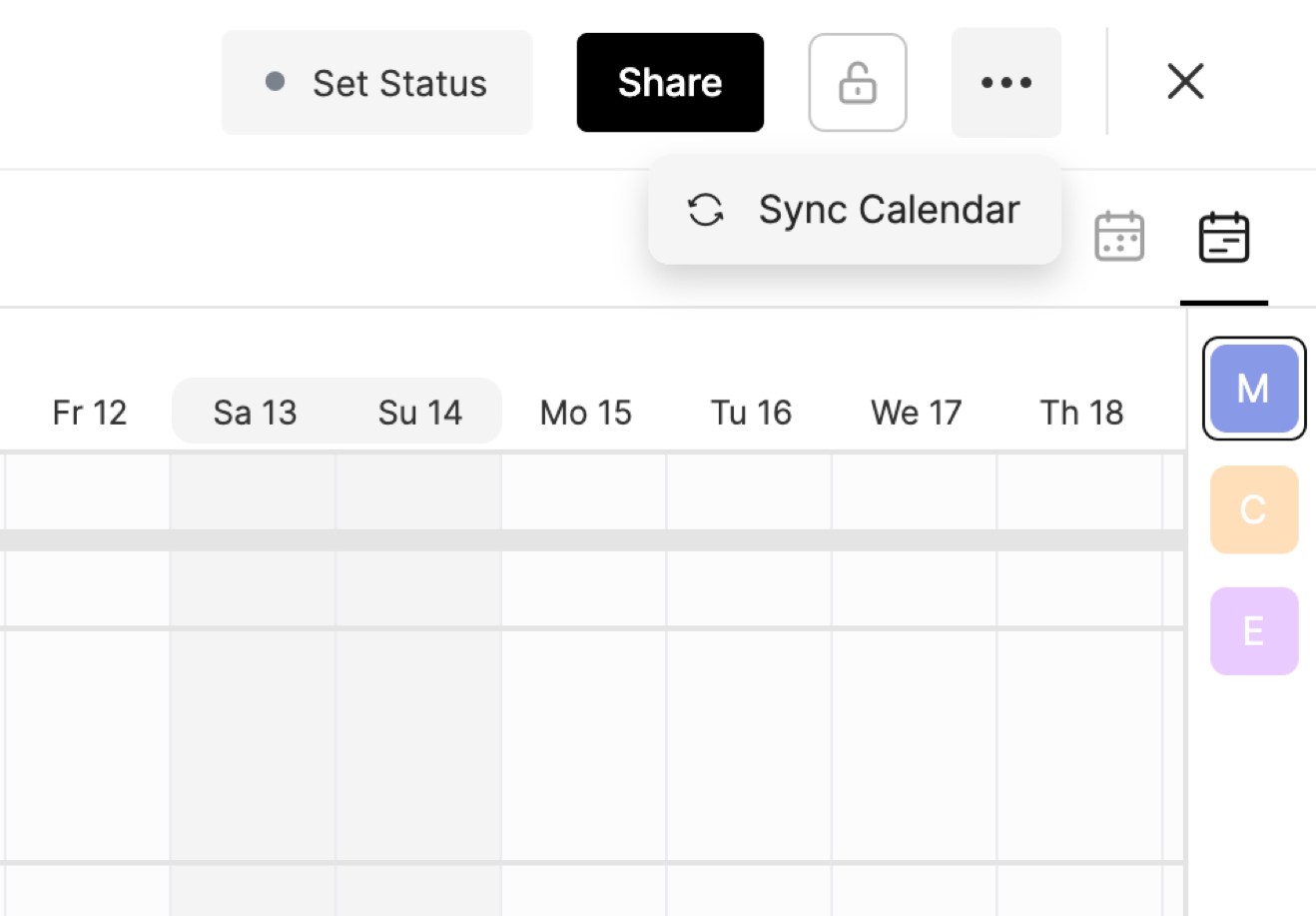
To access your calendar syncing options, open the calendar, then select the Three-Dot Menu from the upper right-hand corner.  Select Sync Calendar from the dropdown menu.
A pop-up with three tabs will provide links and instructions for syncing your calendar.  
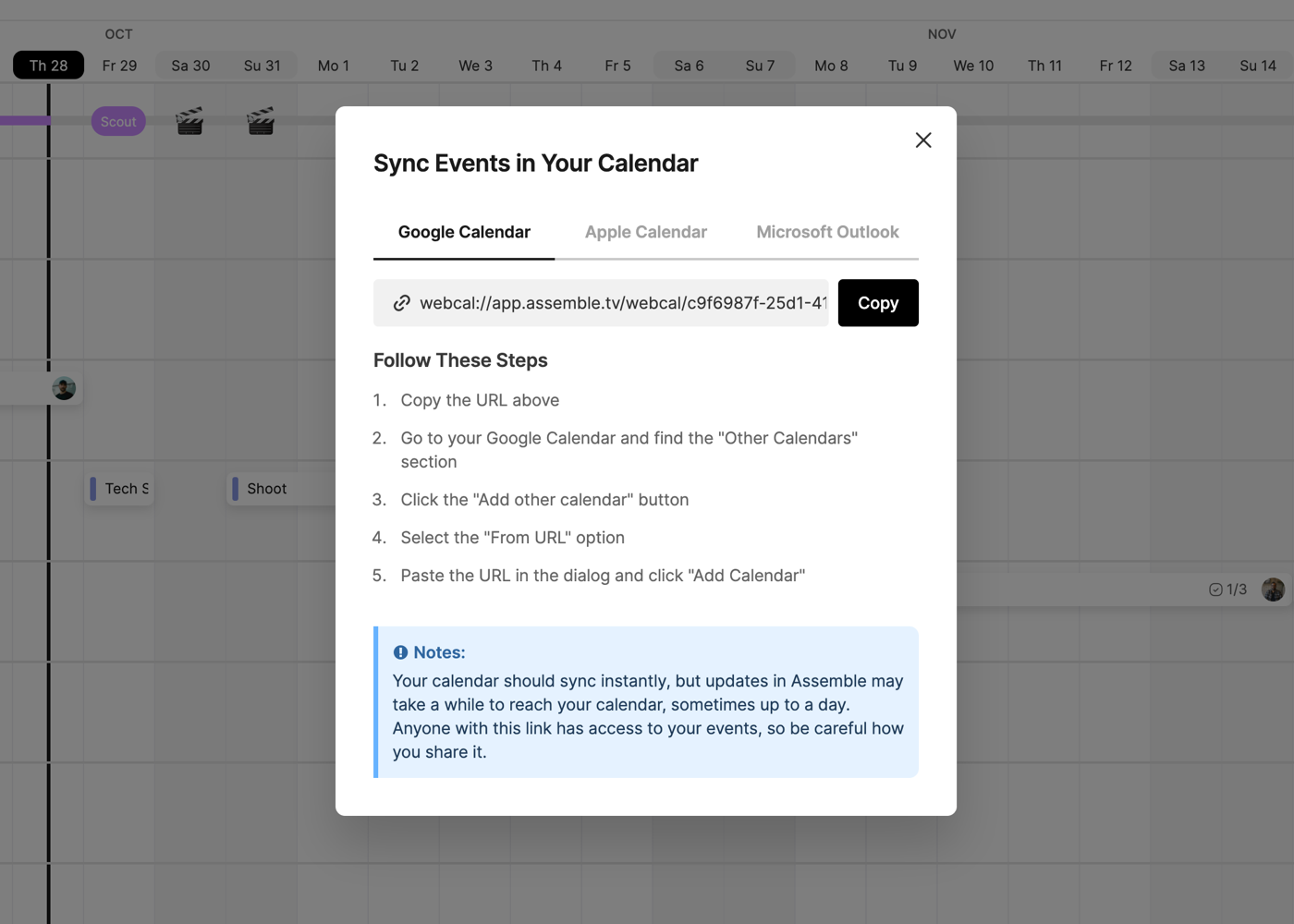
To learn more about how to sync with each kind of calendar, click below:

Google Calendar

Apple Calendar

Microsoft Outlook

How to Sync a Calendar from a Share Link

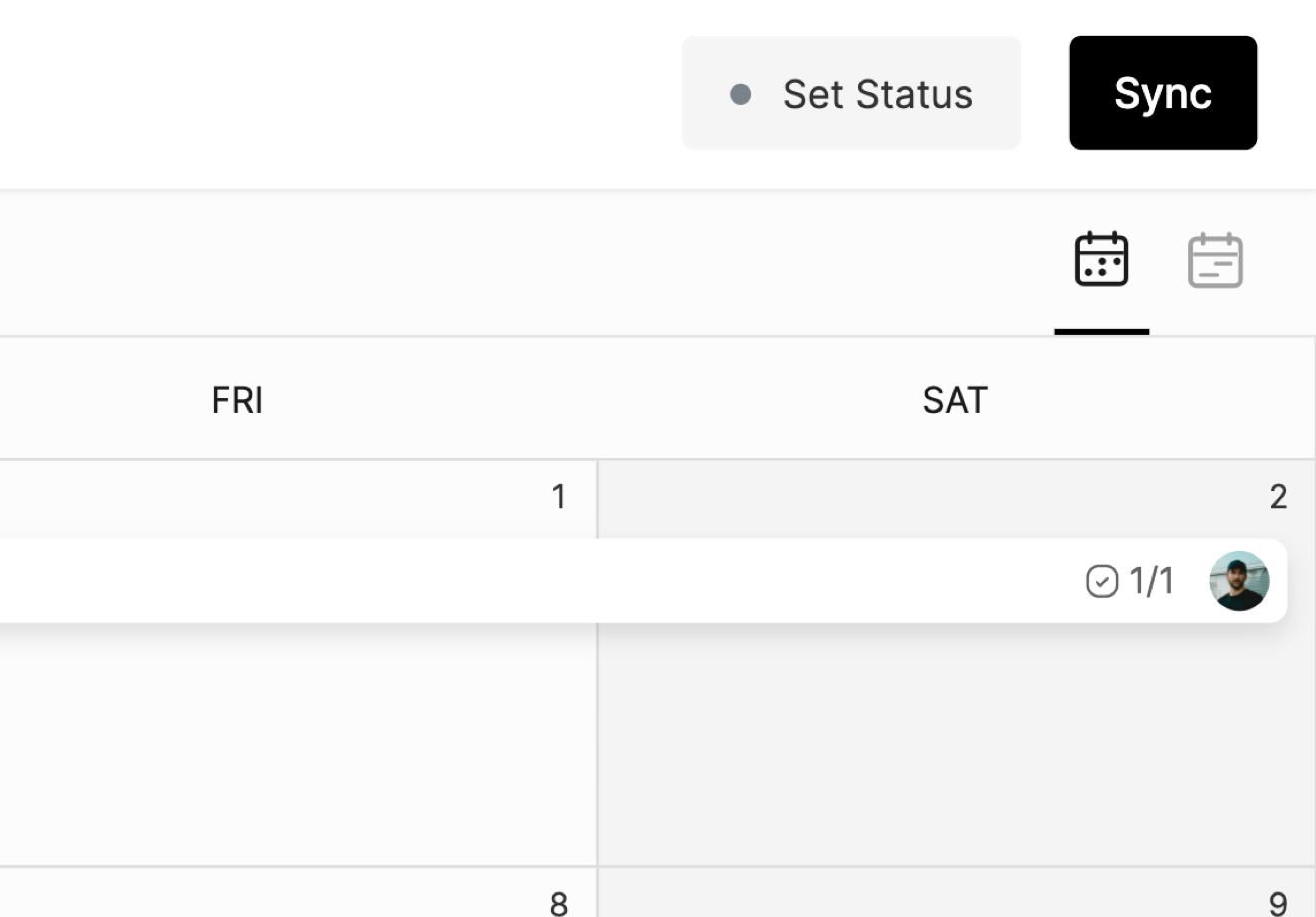
If you have shared a link of the calendar, team members can sync it to their calendar of choice by clicking Sync and then following the instructions for their calendar of choice.
To learn more about sharing a calendar, click here.


PrevTracking Changes to the Calendar
NextUsing the Global Calendar
Was this helpful?