

Locking the Calendar
To lock the calendar, simply click the Lock button at the top right of the calendar. Once the calendar is locked, no one on the project will be able to make changes to the calendar.
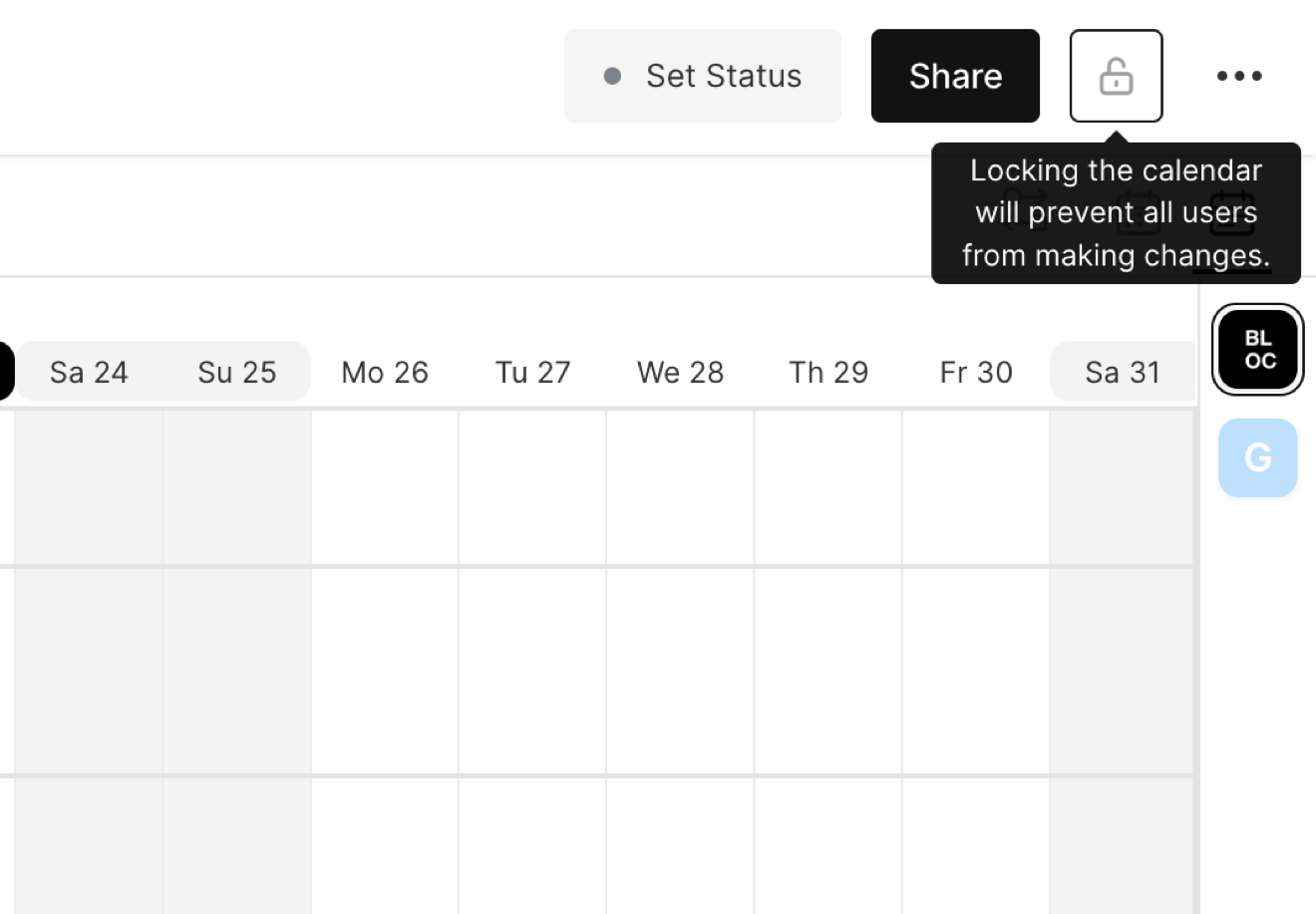
To make changes, click the Lock again to unlock the calendar.
Locking Permissions
Only users that are members of the Workspace Team are able to lock and unlock the calendar.
To learn more about teams & user permissions, click here.
Global Calendar
When a calendar is locked, a small lock icon will appear next to the project name in the master calendar, identifying that the calendar is currently locked and unable to be changed.
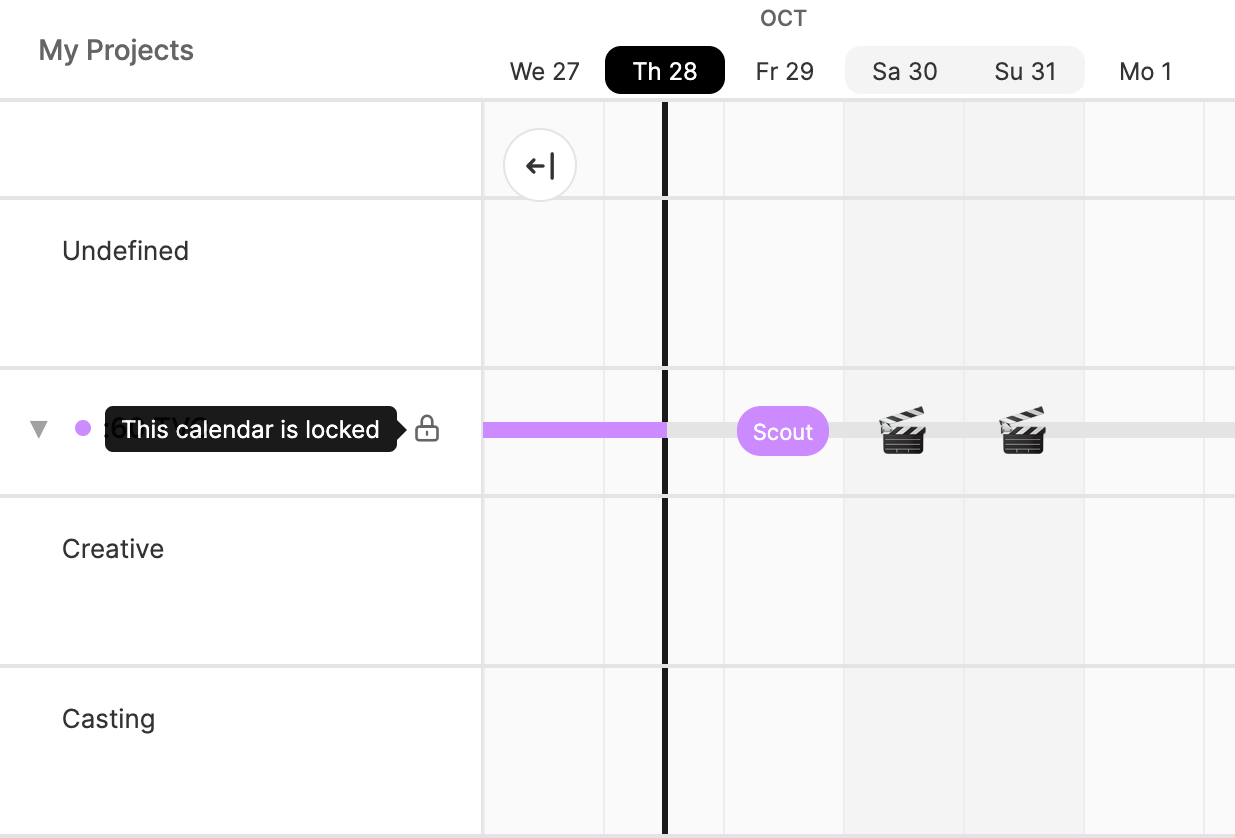
To unlock a calendar on the global calendar, change the lock setting within the specific project.