
Create and Manage Account Admins
Learn about admin priveleges and how to create new admins.
Overview
Each workspace has at least one account admin, typically the person who originally created the workspace.
Admins are able to manage the subscription and memberships of other teammates. Additionally, admins can see all project in the workspace, while teammates can only see the projects that they are invited to.
Admins vs. Teammates
Teammates are paid members of a workspace that are able to access all project features within the account, such as creating new projects, building calendars, and uploading files.
However, only admins are allowed to manage all account level settings, such as upgrading or downgrading a subscription. Below are a list of the admin's additional capabilities:
Viewing all projects created by any user within the workspace
Upgrading or downgrading plan
Increasing or decreasing paid seat allotment
Adding or removing storage
Viewing or updating payment method
Viewing billing history
Removing teammates
Creating new admins
Enabling or disabling users with same email domain from auto-joining workspace
NOTE: Teammates can invite other teammates to projects, which will add the new users as paid seats to the account.
To see a full breakdown of teammate capabilities, click here.
How to Add a New Admin
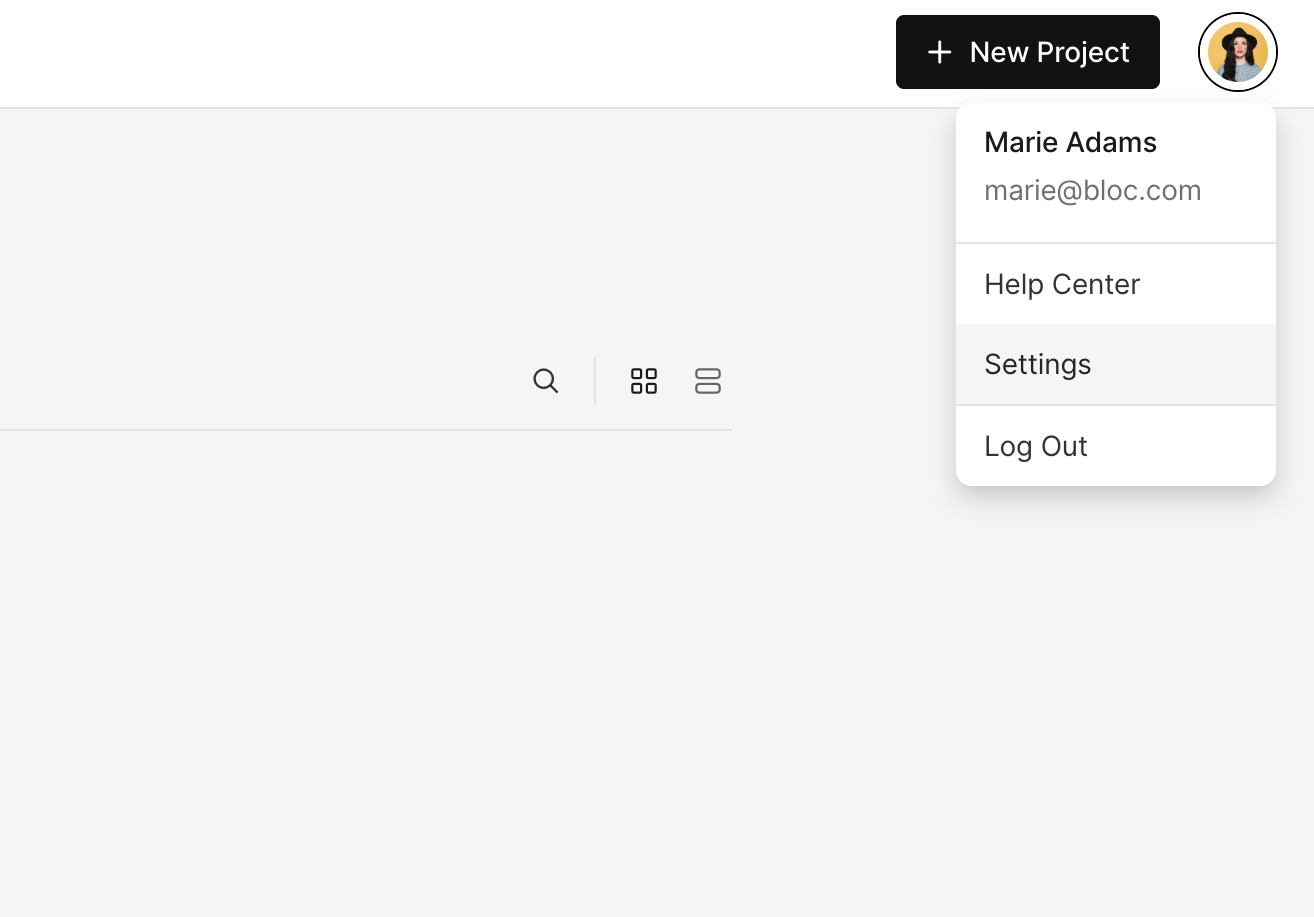
To convert a teammate to an admin, navigate to the main Projects dashboard and click the Profile icon in the top right, and then select Settings.
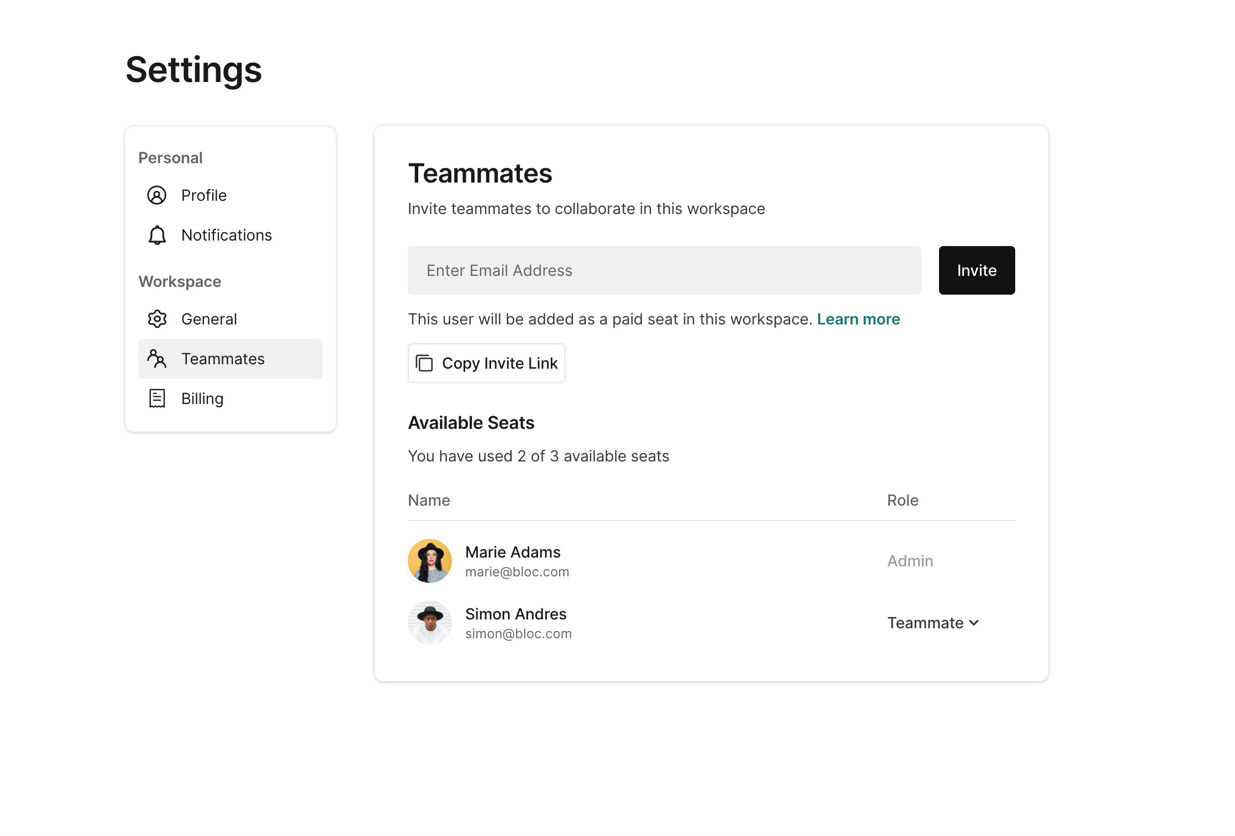
Next, click Members to view a list of workspace members.
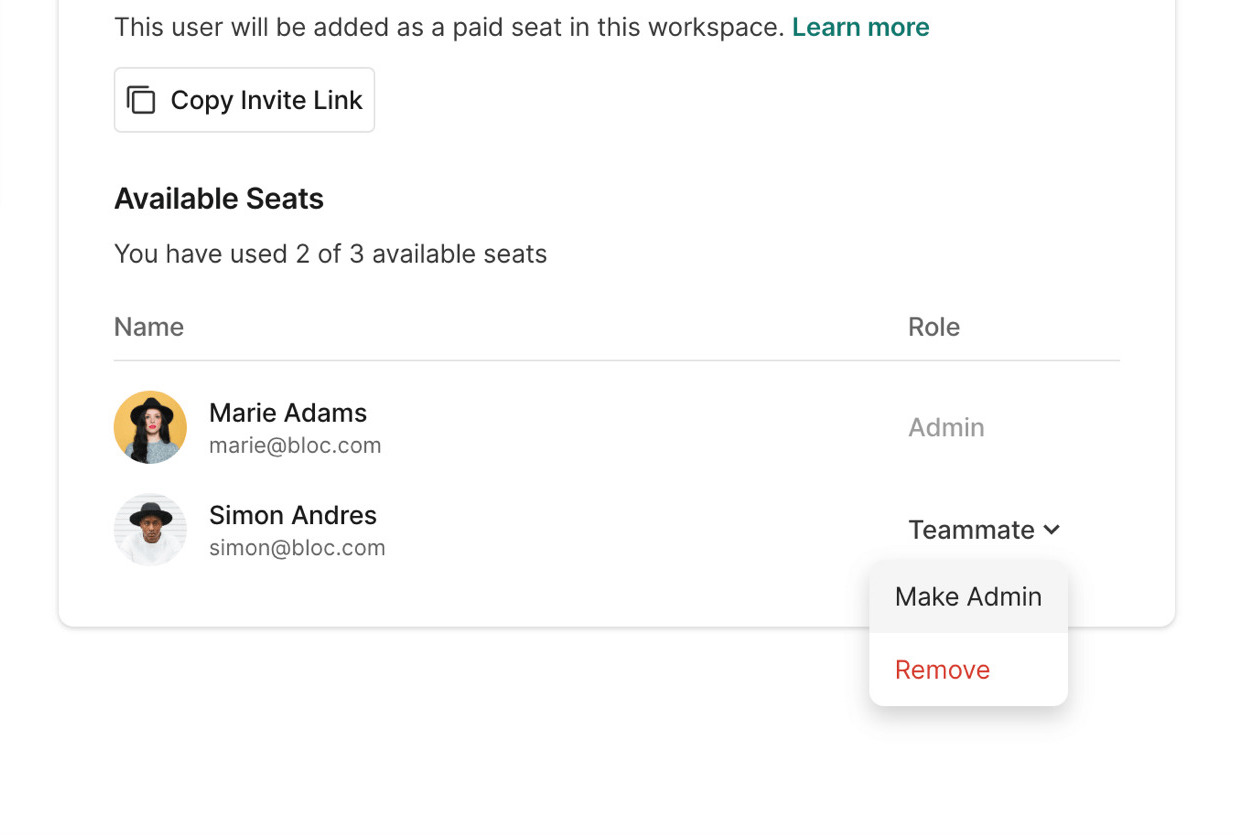
Find the teammate you would like to upgrade to an admin and then click the Teammate title and click Make Admin.
On the next screen, click Confirm.
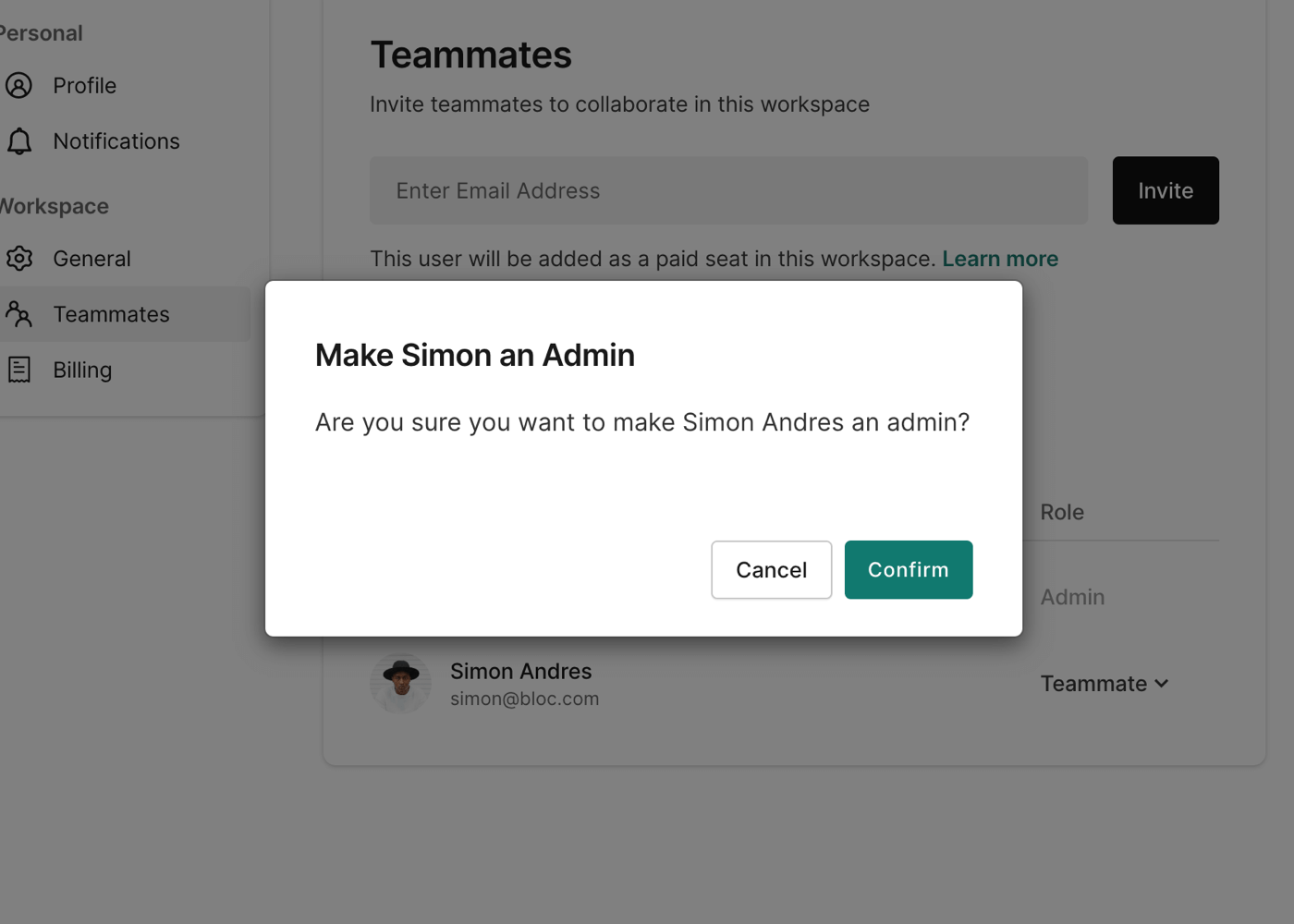
This user will now have admin capabilities.
NOTE: One admin must exist within a workspace at all times.
Was this helpful?