

Marking Comments as Complete
Once comments have been left on a file, you can track which comments have been addressed by simply clicking the Checkmark in the upper-right corner of each comment.
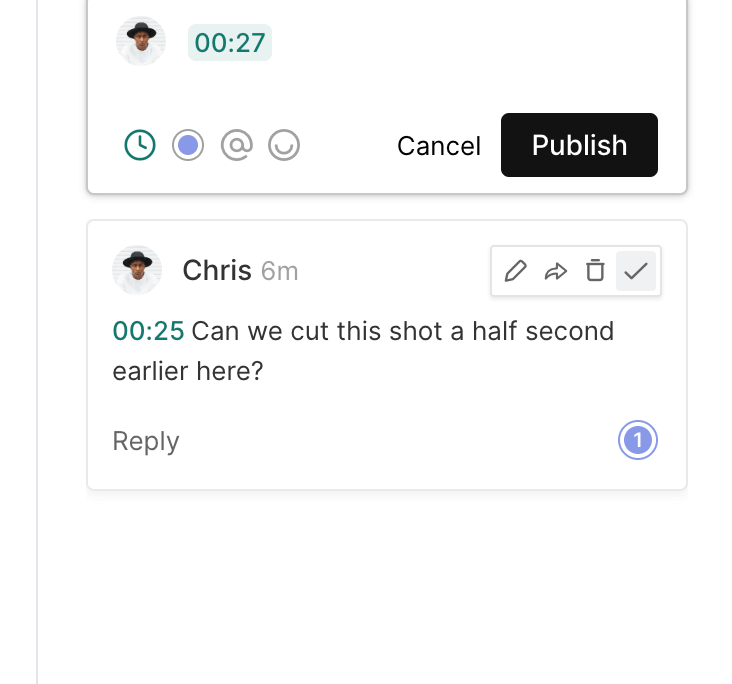
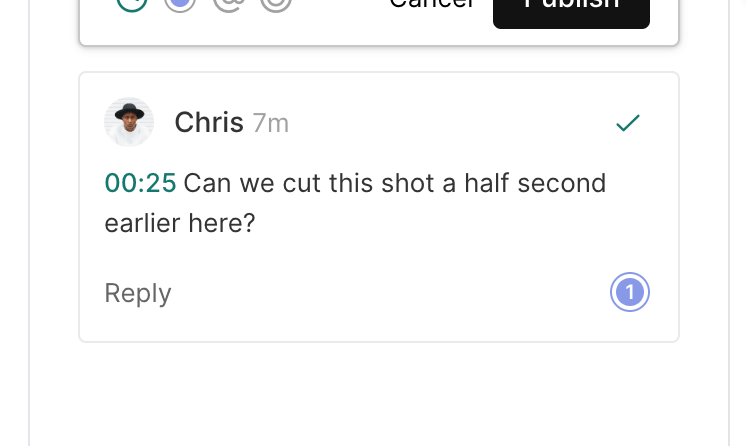
This will leave a visible green checkmark on the comment to let everyone know the comment has been completed. All users who have permission to view the feedback thread will be able to see the checkmark once it is added.
Hiding Completed Comments
By default, when you mark a comment as complete, the comment will still be displayed. If you would prefer for comments to disappear once they are marked as complete, click the Filter options at the top of the feedback thread, and then deselect Show Completed. This will cause comments to be hidden once you mark them as complete. If there is a markup associated with the comment, the markup will be hidden as well.
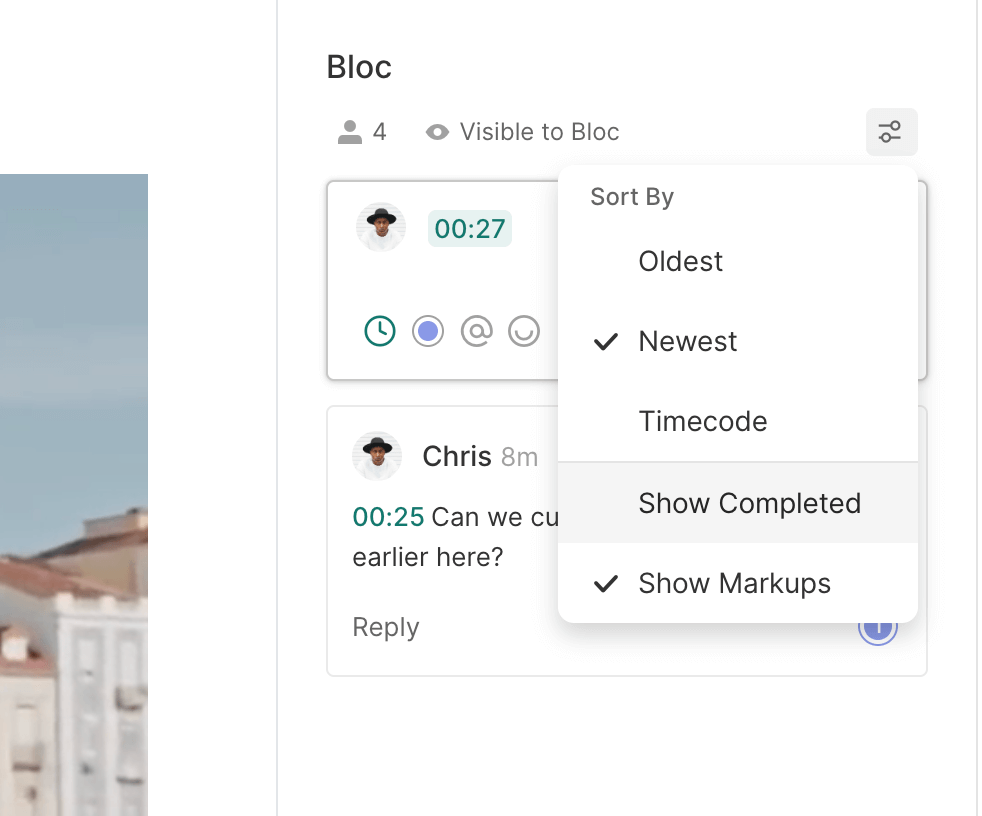
If you ever want to recover all of the hidden comments, just open the Filter options and select Show Completed.
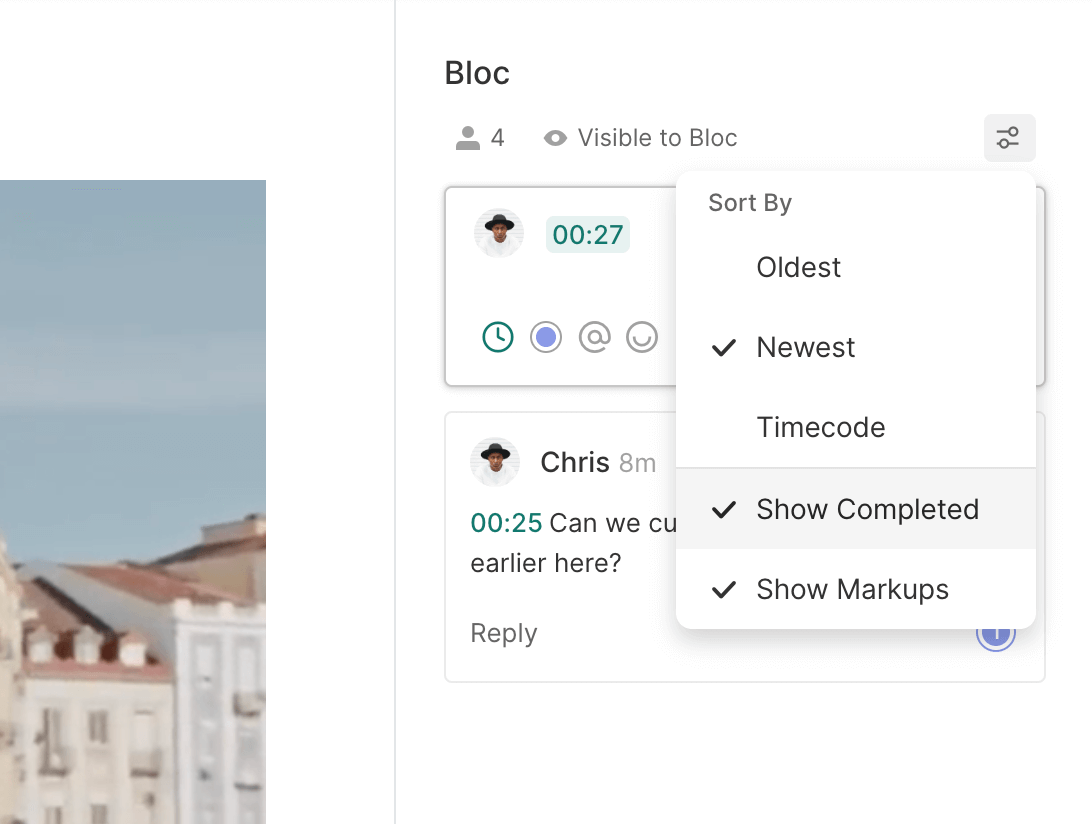
Once you have updated your sort and filter preferences, they will automatically remain in effect for you across all projects.
These sort and filter options are a personal setting only. Changing the preferences will only affect your account, and will not change the settings for other users. By default, all other users will be set to the Oldest sorting option, and Show Completed toggled on.
To learn more about leaving feedback on files, click here.