

Exporting a Document
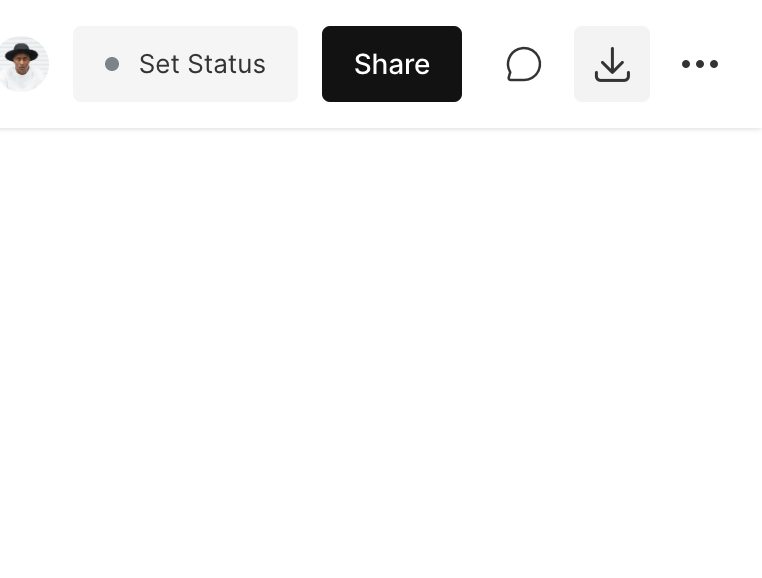
To export a document as a PDF, open the document and click the Download button in the top right.
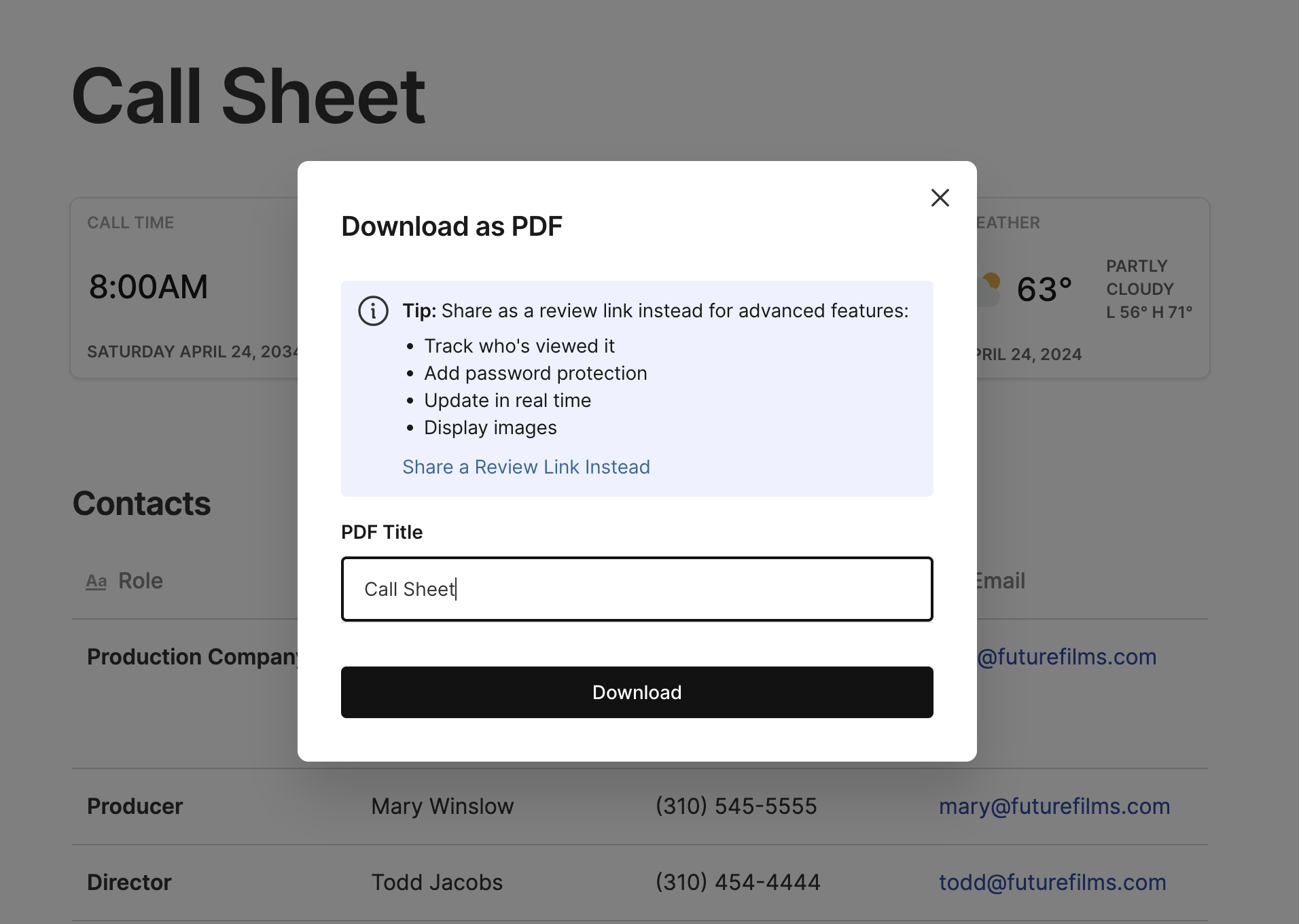
On the next screen, you can edit the Title for the PDF, and then click Download to export the PDF.
PDF Export Tips
When exporting a PDF, the document is output as a standard letter size document (8.5 x 11 inches). This means that if your table is too wide, some content will be cut off.
However, you can adjust your table before exporting to ensure that all of your content fits within the standard letter size of an exported PDF. To do so, we recommend the following tips:
Minimize your tables to standard page width by clicking the expand the Expand button at the top right corner of each table.
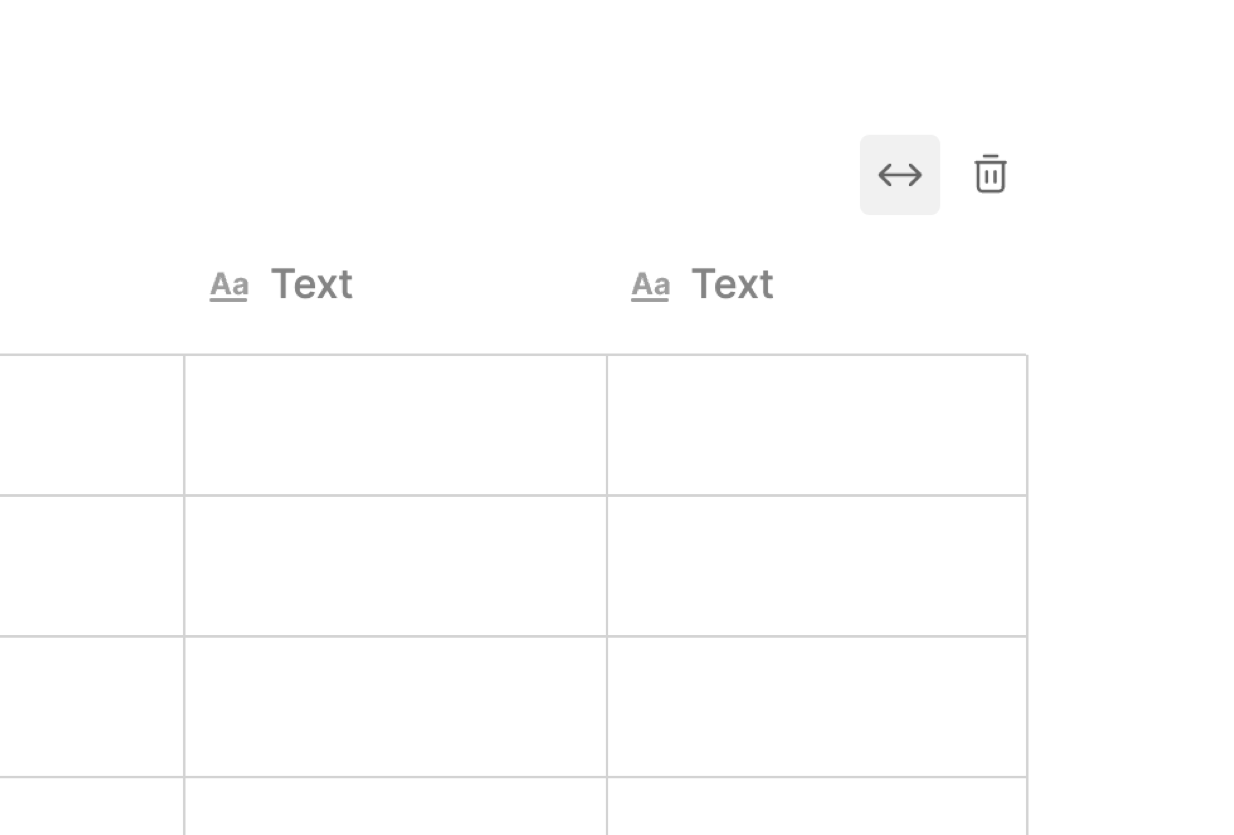
Reduce the column widths until there is no more left to right scrolling within the table.
By following these steps, all of your content should fit within the PDF export.
Managing Export Permissions
You can control who is able to export your documents as PDFs, both for logged in users and users viewing an external review link of the document.
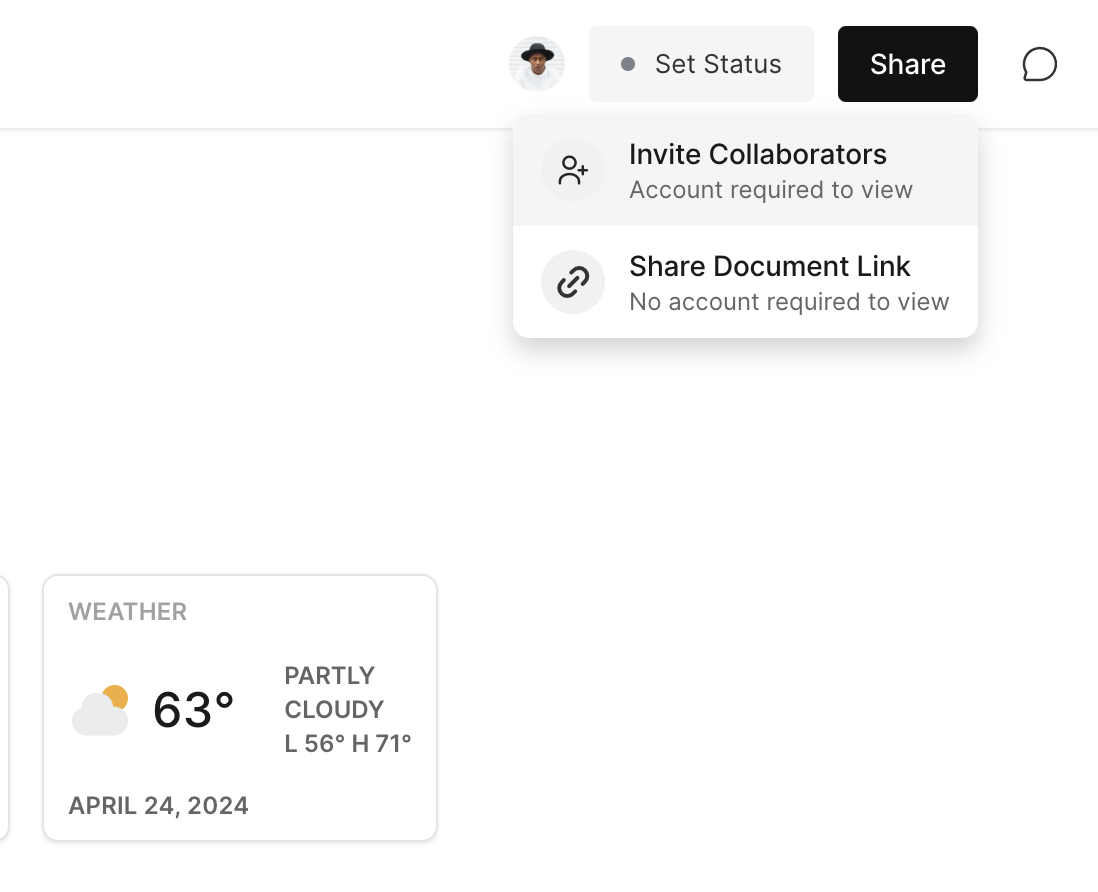
To change the export permissions for logged in users, open the document, click Share and choose Invite Collaborators.
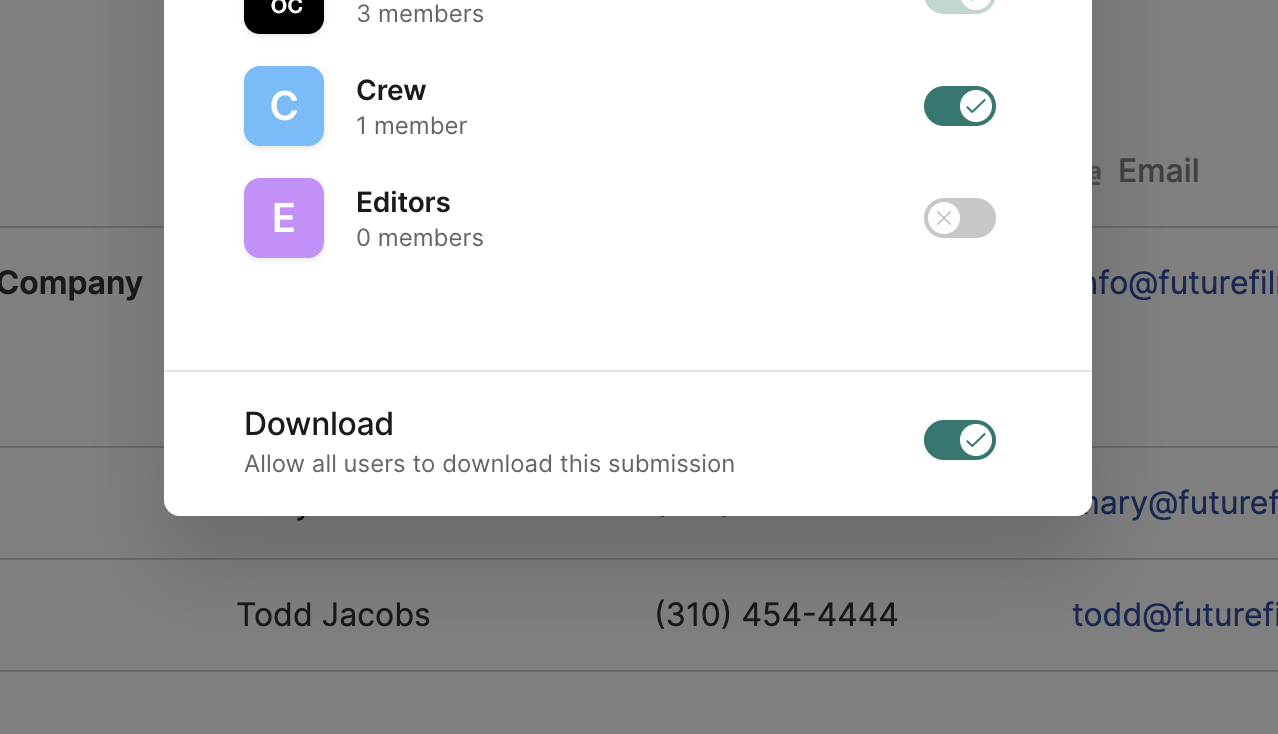
At the bottom of this screen, you can choose to turn Download on or off. Turning it off will remove the download option for logged in users.
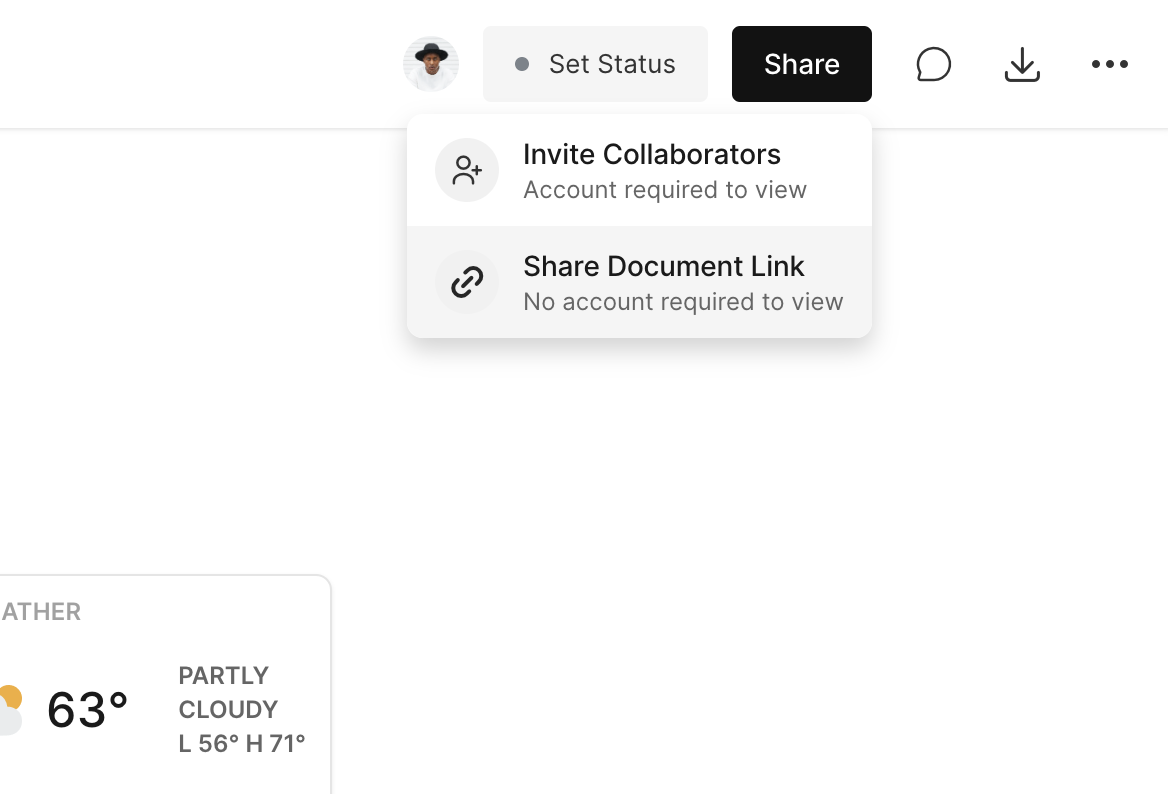
To change export permissions for a review link, navigate to Share and then Share Document Link.
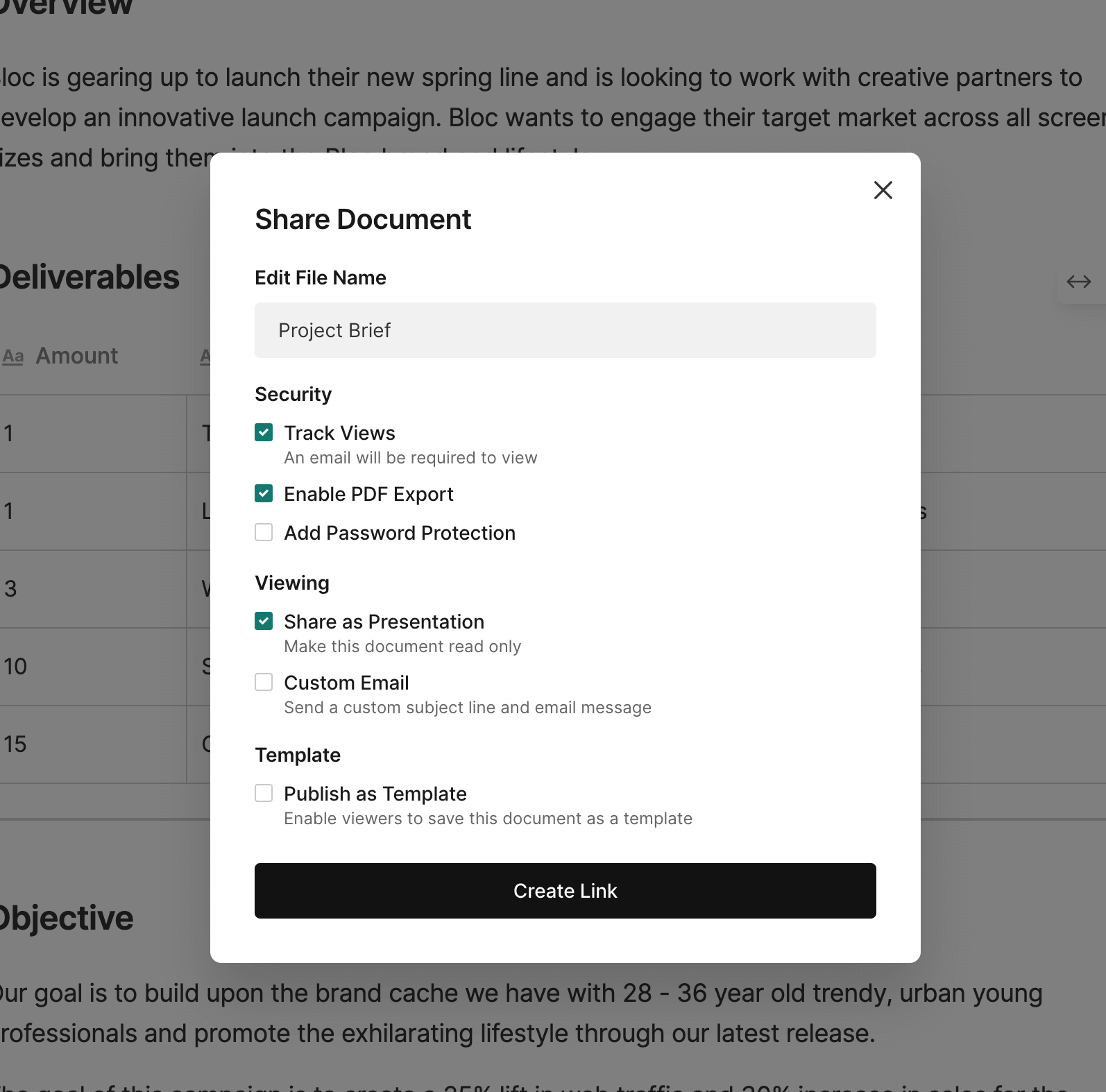
Under Settings you can check Enable PDF Export on or off to control whether external viewers are able to export the document.
To learn more about sharing a review link of a document, click here.